

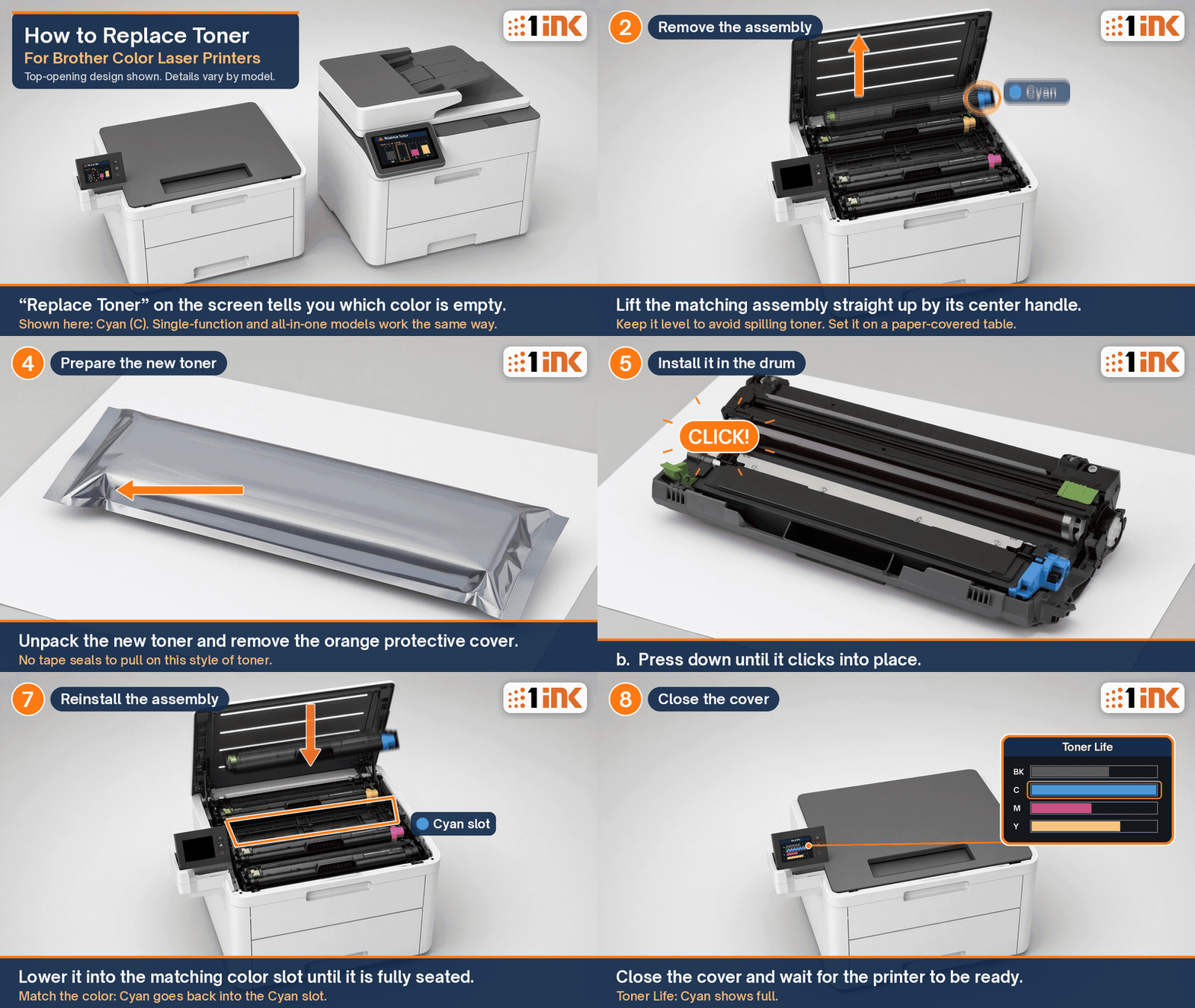
Quick answer: Leave the printer on, open the top cover and let it cool if it was just printing. Lift out the drum-and-toner assembly for the color on the screen. Press the green lever, lift out the old toner, and keep the drum. Take the cover off the new toner and press it into the drum until it clicks. Slide the green corona-wire tab back and forth, park it at Home, put the assembly back in the same color slot, and close the cover. Do not reset the drum counter. That is only for a new drum.
These steps work for Brother TN221, TN225, TN223, TN227 and TN229 toners and most Brother color laser printers with a separate toner and drum. Each toner family is its own cartridge, though. They are not interchangeable, so buy the one that matches your printer model.
The examples below use TN229XL toner with the DR229CL drum. Brother lists these models for that pair: HL-L3220CDW, HL-L3280CDW, HL-L3295CDW, HL-L3300CDW, HL-L8245CDW, MFC-L3720CDW, MFC-L3765CDW, MFC-L3780CDW and MFC-L8395CDW. Each of the four drums holds one toner, and you change only the color that is empty.
Find your toner
Match the toner to your printer model. Each family below is a different cartridge.
- TN229XL: HL-L3220CDW, HL-L3280CDW, HL-L3300CDW, MFC-L3720CDW, MFC-L3780CDW and others. See the compatible TN229XL toner set.
- TN227 (also replaces TN223): HL-L3210CW, HL-L3230CDW, HL-L3270CDW, HL-L3290CDW, MFC-L3710CW, MFC-L3750CDW and MFC-L3770CDW. 1ink doesn't sell a separate TN223 cartridge. Our TN227 pages say they replace TN223. See the compatible TN227 toner set.
- TN221 black and TN225 color: HL-3140CW, HL-3170CDW, MFC-9130CW, MFC-9330CDW, MFC-9340CDW and others. See the compatible TN221/TN225 toner set.
What do you need?
- A new toner cartridge in the color the screen asks for, matched to your printer model.
- A sheet of scrap paper and a clean, flat spot next to the printer.
Quick steps
- Read the screen to see which color needs toner.
- Keep the printer on. Open the top cover. Let it cool if it was just printing.
- Lift out that color's assembly by its handle. Keep it level and set it on paper.
- Press the green lever (usually on the left end of the drum) and lift the old toner out.
- Unpack the new toner and pull off its protective cover.
- Press the toner into the drum until it clicks.
- Slide the green tab back and forth, then return it to Home.
- Put the assembly back in the slot with the same color label.
- Close the cover and wait for the printer to show Ready.
What does the "Replace Toner" message mean?
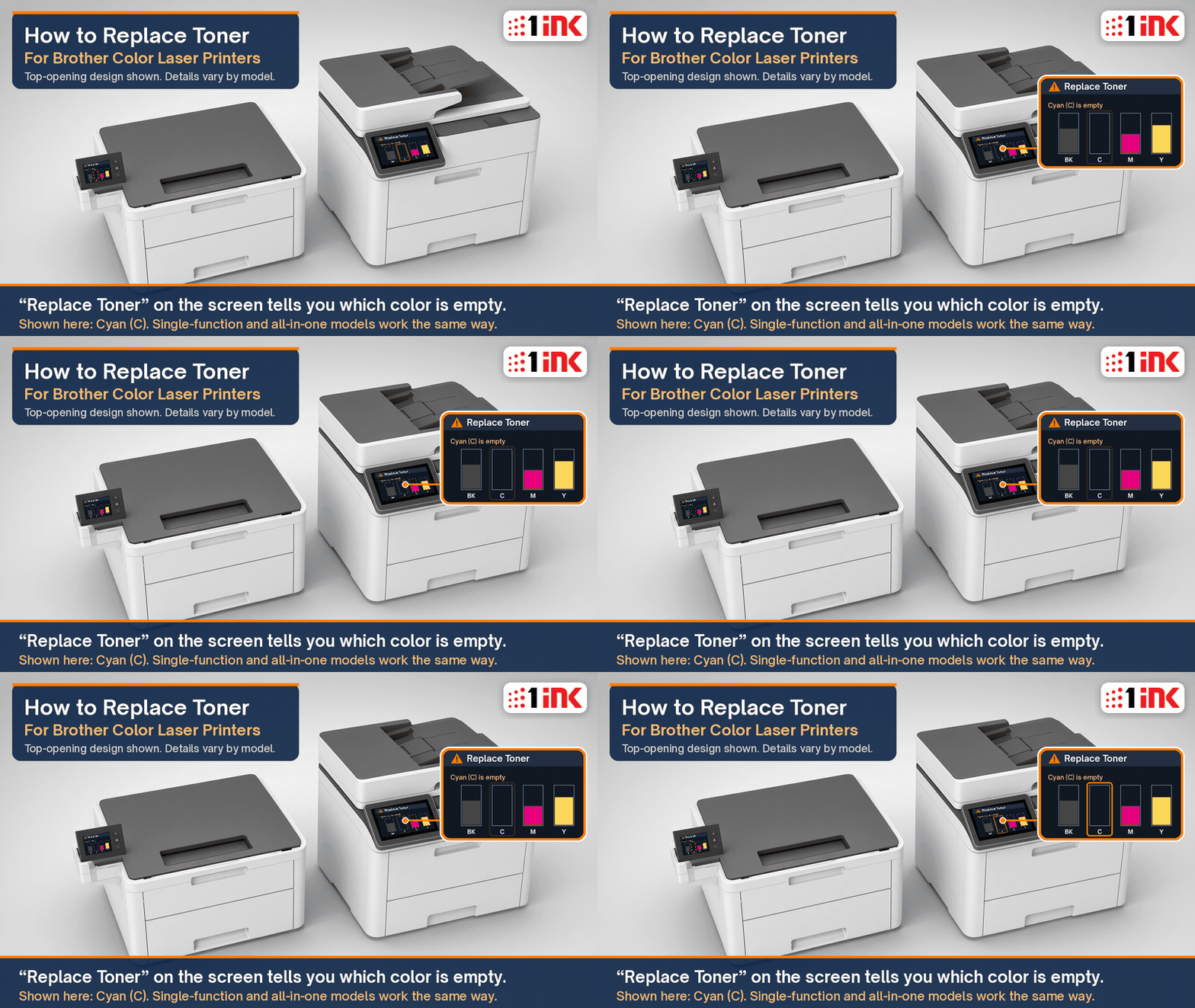
It means the printer thinks one color is empty. The screen names the color, so read it before you open anything. Brother printers warn you twice. First you see "Toner Low." That is your sign to order a new cartridge. Later you see "Replace Toner." Printing can stop until you put in a new cartridge.
How long should a cartridge last? Brother rates the standard TN229 at about 1,500 pages for black and 1,200 for each color. The high-yield TN229XL is rated at about 3,000 black and 2,300 color pages. The toner that came in the box is a "starter" cartridge. On the MFC-L3720CDW and HL-L3300CDW, for example, it is rated at only about 1,000 pages. That is why the first swap comes so soon.
Tip: Those numbers are for pages with about 5% coverage, like a short letter. Brother says photos, charts and solid color use more toner, so expect fewer pages if you print those.
Step 1: Should the printer be on or off?
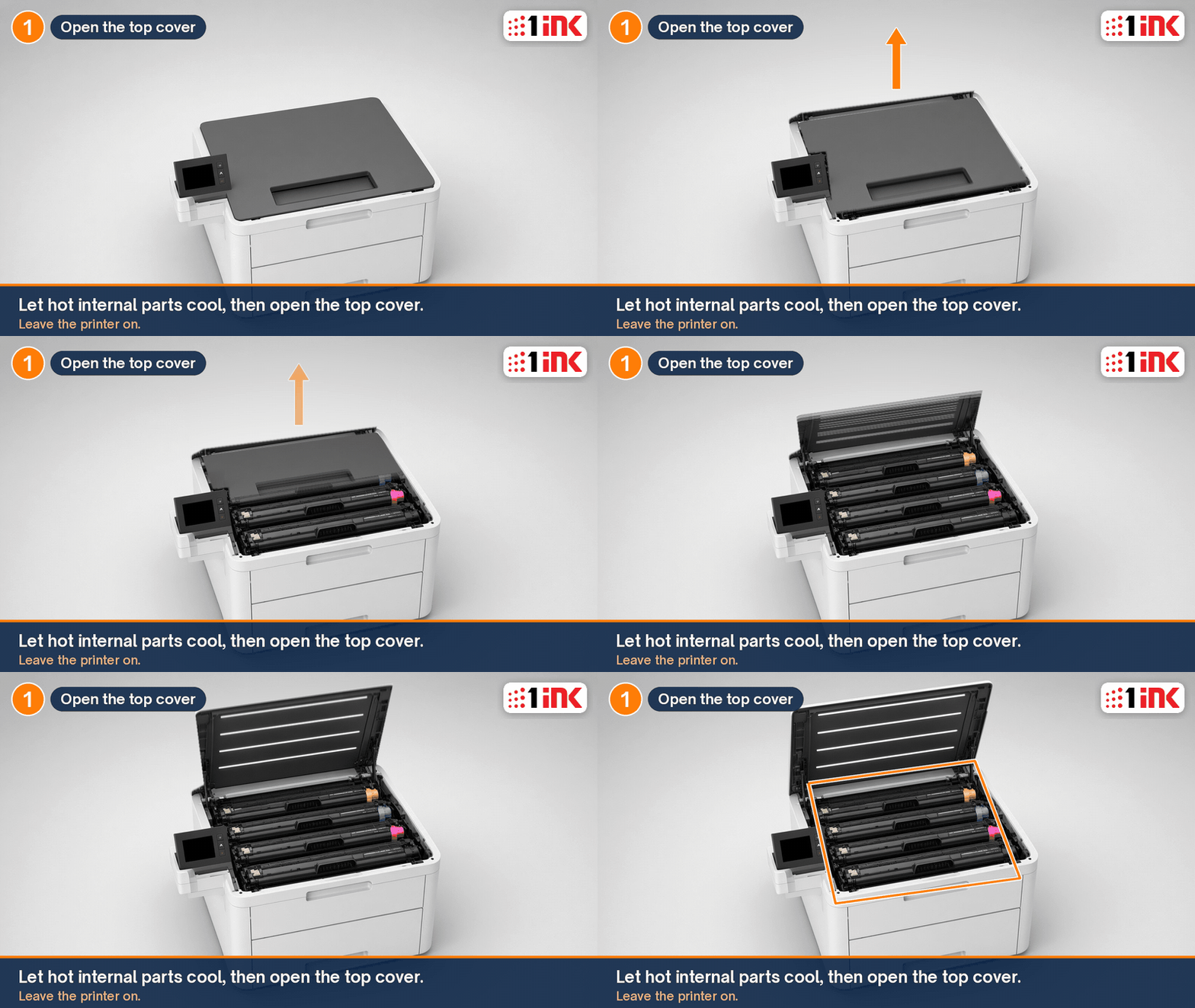
Leave it on. Brother's manual says to make sure the machine is turned on before you start. Many people switch it off first, but the printer should stay on through the whole swap.
Open the top cover until it locks in the open position. You will see four assemblies in a row, one per color. Brother warns that parts inside can be very hot. If it was just printing, let it cool before you touch anything.
Tip: Have the new toner nearby, but keep it in its bag for now.
Step 2: How do you take out the drum and toner?
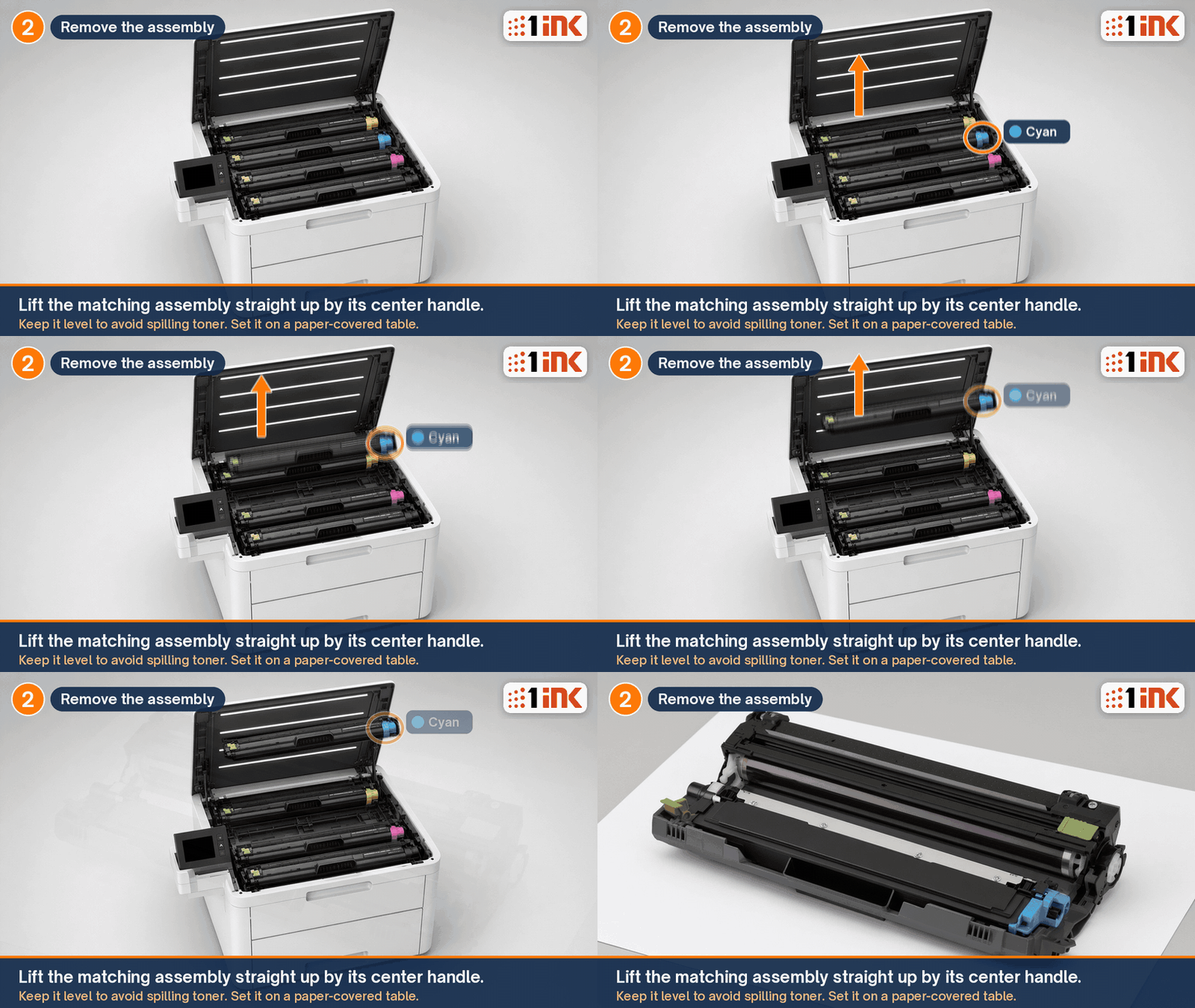
Find the assembly with the color the screen named. Hold it by its center handle and lift it straight up. The toner and drum come out together as one piece.
Keep it level as you lift. The toner is a fine powder, and tipping the unit can spill it. Set it on a flat surface with scrap paper underneath. Brother suggests the paper in case toner spills.
Tips:
- Don't touch the metal contacts on the ends. Brother warns that static can damage the machine.
- Don't leave the drum in sunlight or bright light for a long time. Brother says light can damage it.
Step 3: How do you get the old toner out of the drum?
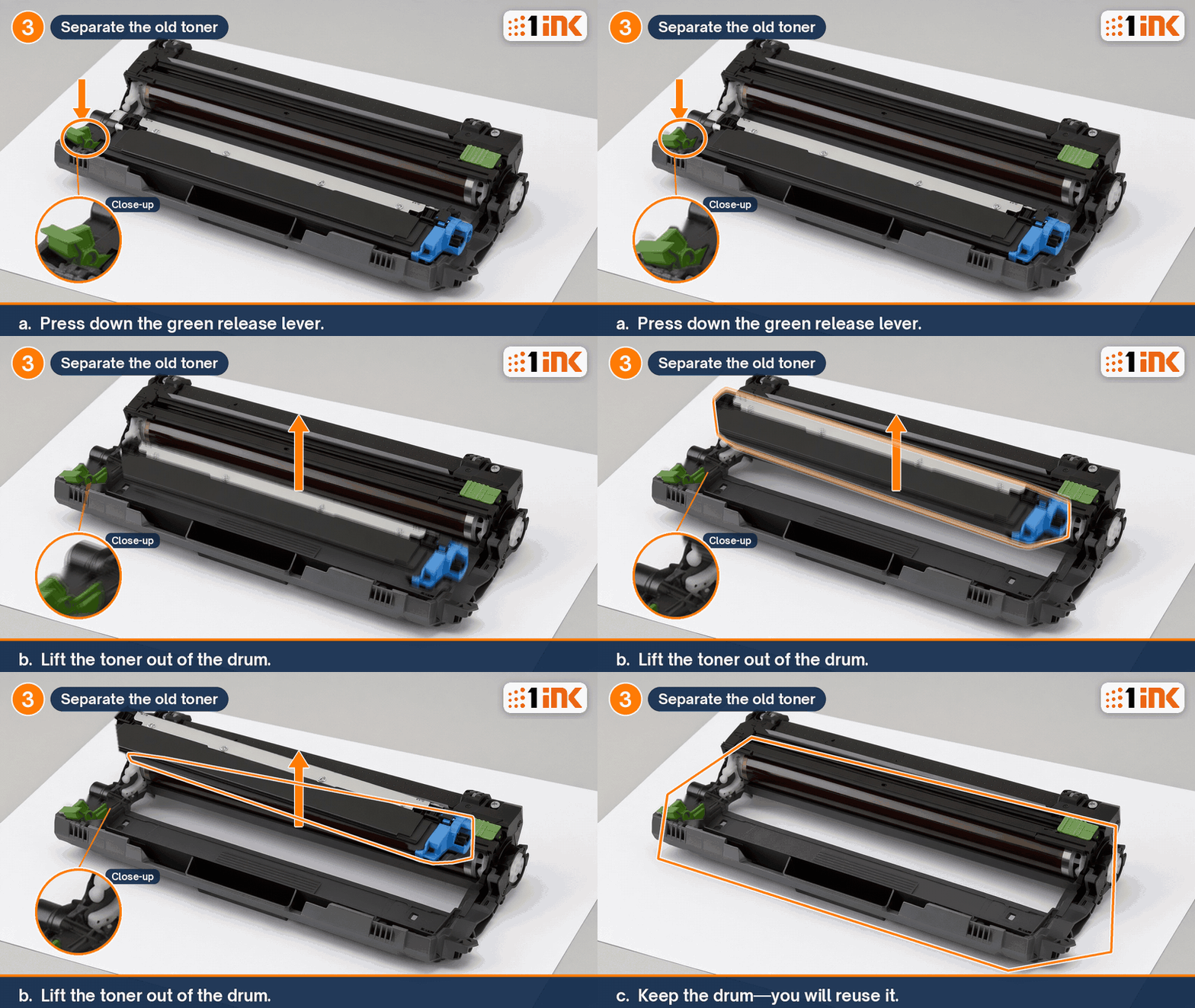
Push down the green release lever. It is usually on the left end of the drum. On some models it may be on the right. Then lift the toner cartridge up and out. The drum stays on the table.
Keep the drum. It is a separate part that lasts much longer than the toner. Brother rates each DR229CL drum at about 20,000 pages when you print one page per job. That is roughly six high-yield black cartridges per drum.
Tip: Put the old cartridge straight into the new toner's bag or box. That keeps loose toner off your desk.
Step 4: How do you get the new toner ready?
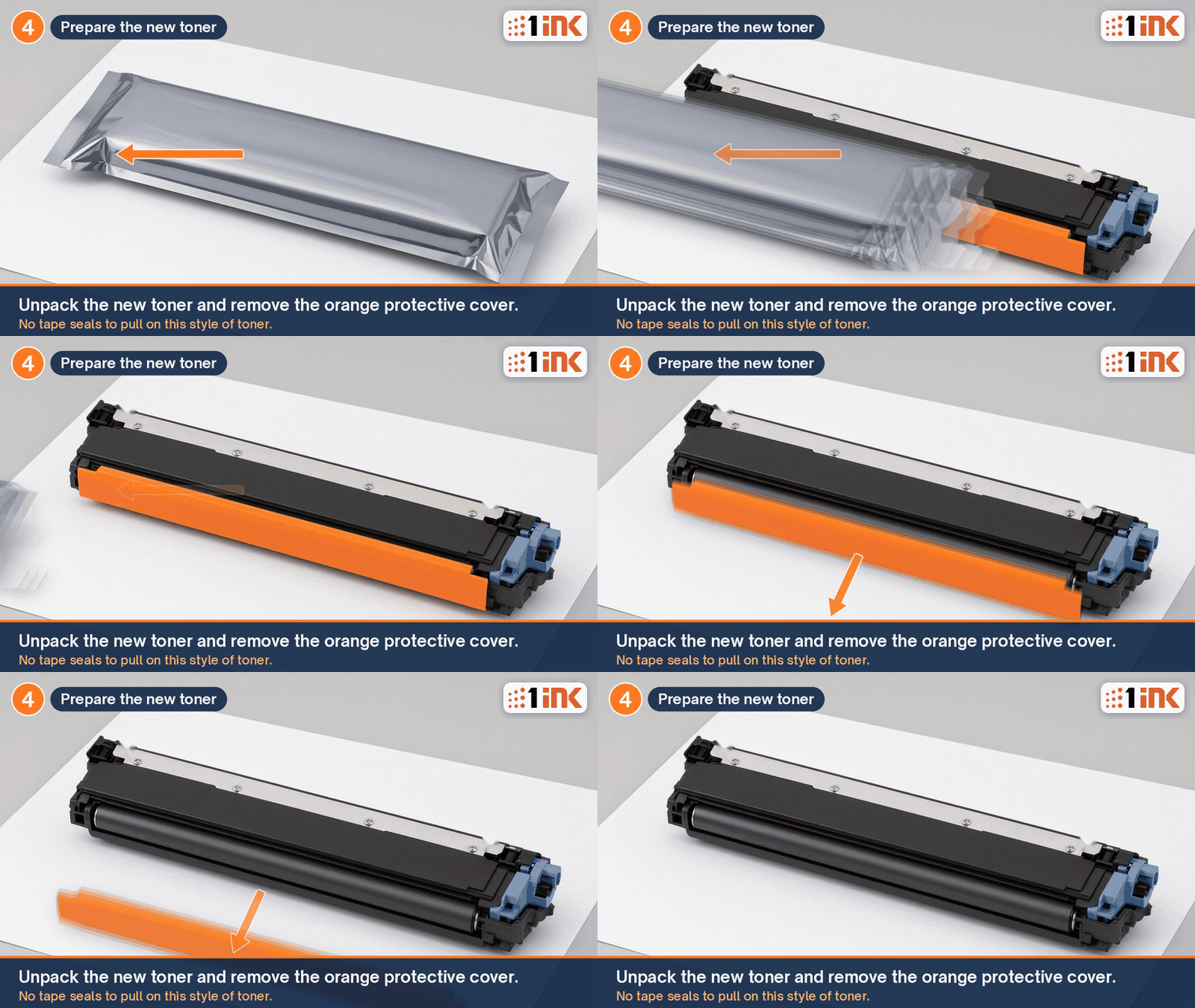
Unpack the new toner and pull off the protective cover. It is often orange and covers the roller along one side. This style of cartridge has no tape seal to pull.
Brother's manual calls these the "protective materials." Brother says not to unpack a toner until you are ready to put it in. A cartridge left out of its bag for a long time has a shorter life.
On older printers that use TN221 or TN225 toner, Brother adds one step. Hold the new cartridge level with both hands and gently shake it side to side a few times. That spreads the toner evenly.
Tip: Don't touch the roller under the cover. Marks on the roller can show up on your prints.
Step 5: How do you put the new toner in the drum?
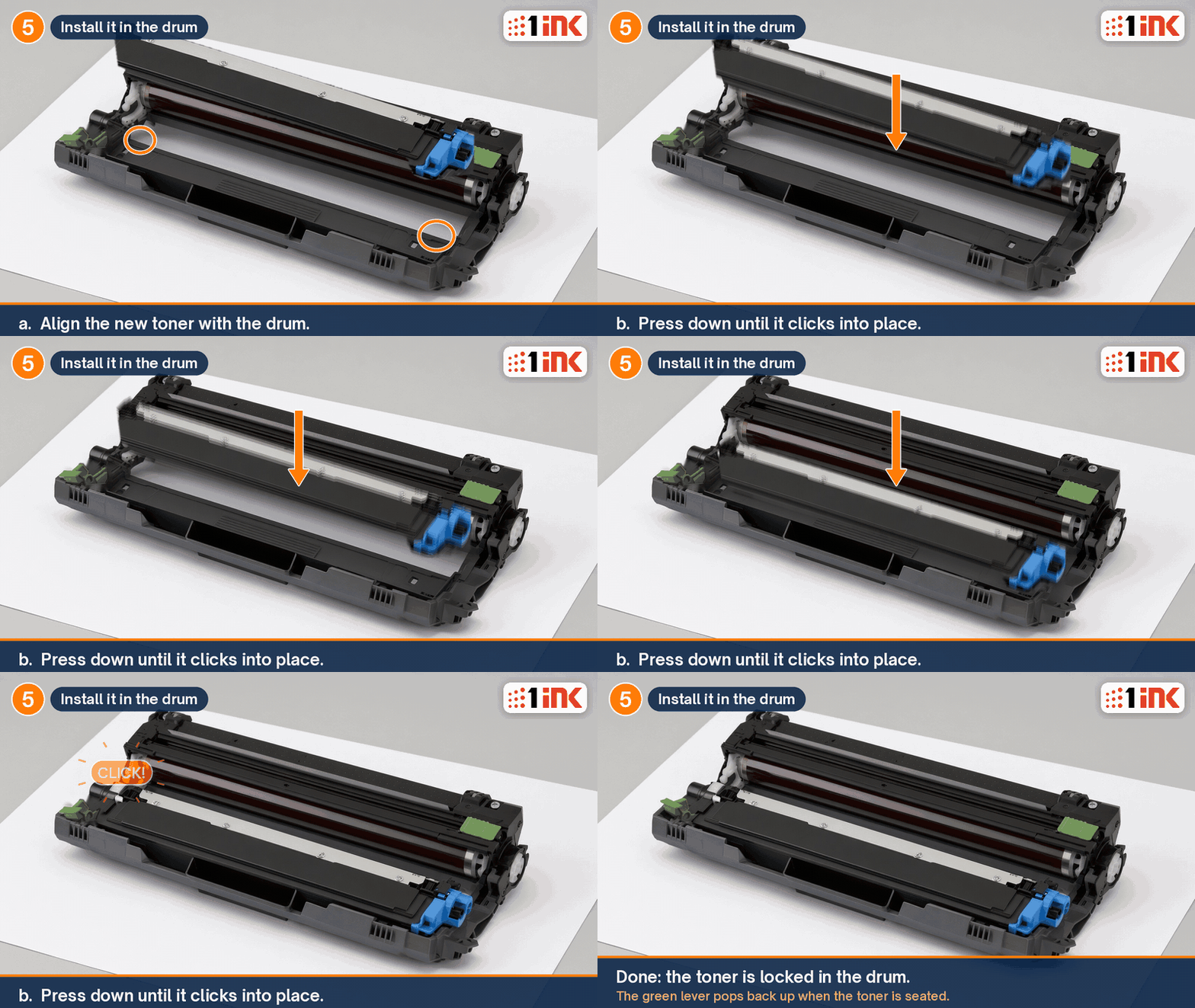
Line the toner up with the drum and press it down firmly. Listen for a click. The click means it is locked in, and the green lever pops back up.
Brother warns that a toner that isn't seated all the way can come apart from the drum. That can cause errors once it is back in the printer.
Tip: No click? Lift the toner out and try again. Don't force it.
Step 6: What does the green tab do, and why clean the corona wire?
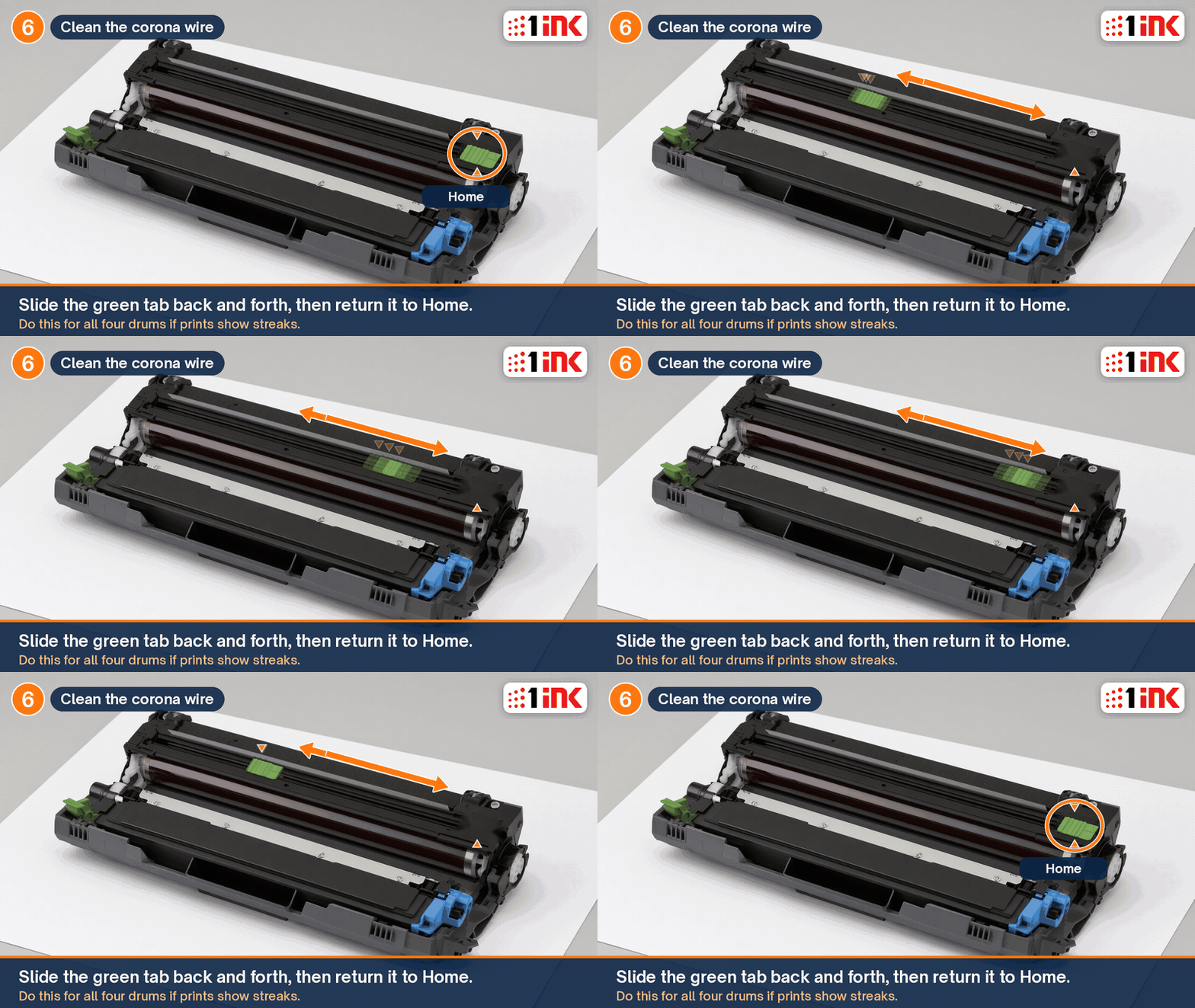
The corona wire is a thin wire inside the drum unit. It puts an electric charge on the drum so the toner sticks only where your text and images go. When toner dust builds up on the wire, you get lines on the page.
Gently slide the green tab from left to right and back a few times. Then slide it back to Home. The arrow on the tab must line up with the arrow on the drum. Brother says a tab left out of place can cause a vertical stripe on your prints.
Tip: If your prints have streaks, clean all four corona wires, not just the one you opened.
Step 7: Where does the assembly go back in?
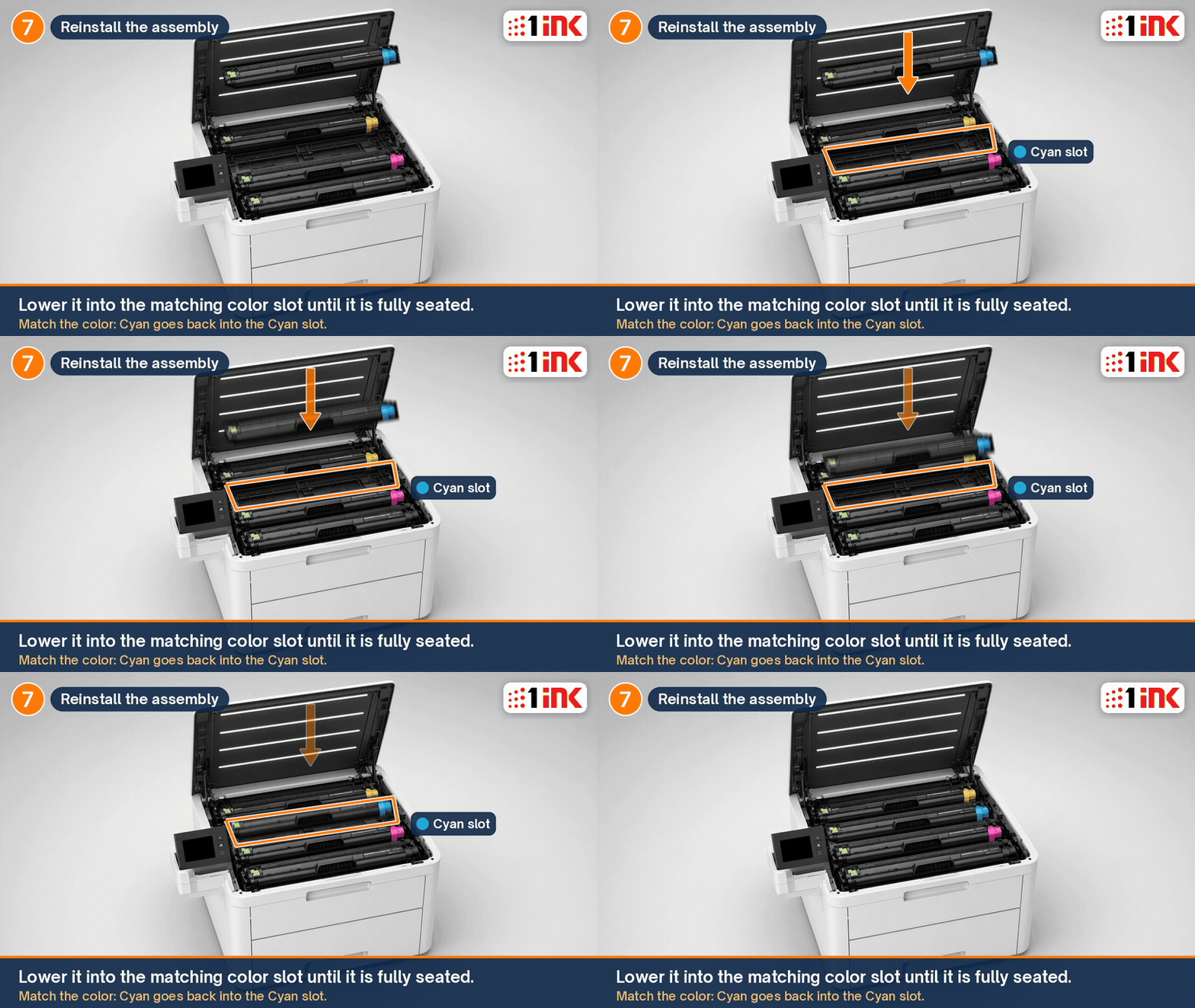
Slide it back into the slot it came from. Each slot has a color label. Match the toner color to that label.
Lower it gently and keep it level until it sits all the way down. If it doesn't drop in easily, lift it out and check that it is the right color for that slot.
Tip: If you took out more than one assembly, do them one at a time. That way the colors can't get mixed up.
Step 8: How do you finish up?
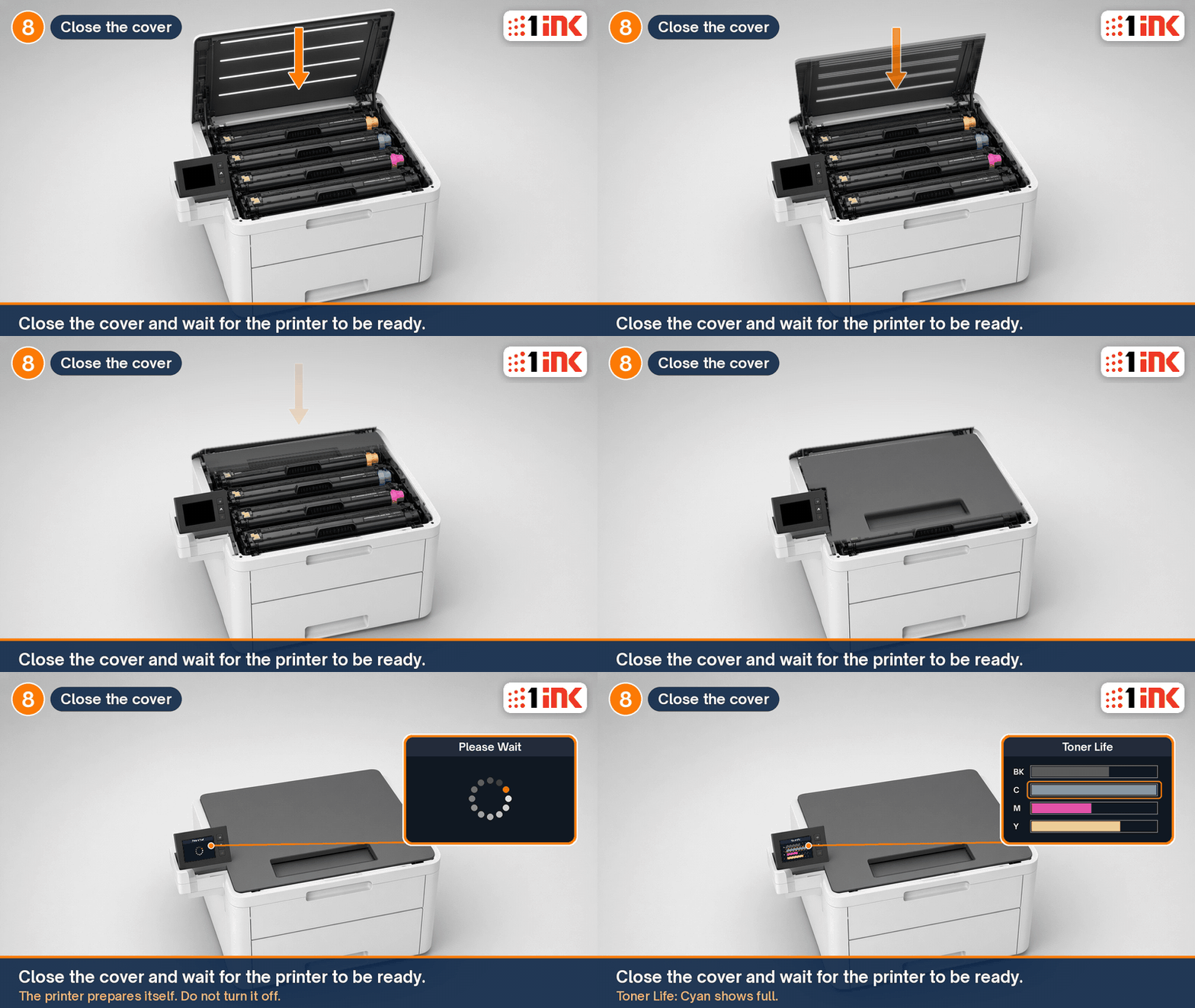
Close the top cover and wait for the printer to show Ready. Brother says not to turn the printer off or open the cover until then. Once it is ready, print a test page to make sure the colors look right.
What if the printer doesn't recognize the new toner?
Brother suggests these checks when "Replace Toner" stays on the screen:
- Make sure the toner is new. The printer only resets the count for a brand-new cartridge. A used cartridge from another printer can keep the error on.
- Check that you changed the right part. The toner and drum look alike. Make sure you replaced the toner, not the drum.
- Reseat it. Take out the assembly, lift the toner out of the drum, press it back in until it clicks, and reinstall. Brother gives the same fix for "Cartridge Error" and "No Toner."
- Clean the corona wire. Brother lists a dirty wire as a possible cause too.
Still stuck with a 1ink cartridge? Call us at 818-534-2660 and we'll help.
What if the toner or drum won't seat?
- Check that the cartridge matches your printer model and the slot's color.
- Take the protective cover off completely.
- Press the toner into the drum until it clicks.
- Lower the assembly straight down, not at an angle.
- Don't force it. Lift it out and try again.
Why are there streaks or lines after changing toner?
A single vertical stripe is often the green tab sitting out of its Home spot. Open the cover and check all four tabs. If your screen shows "Drum !", Brother's fix is to clean the corona wires. For more fixes, see our guide to common toner problems.
Frequently asked questions
Do these steps work for other Brother toners?
These steps work for Brother TN221, TN225, TN223, TN227 and TN229 toners and most Brother color laser printers with a separate toner and drum. Each one uses its own cartridge, so find the toner that matches your printer model.
What is the difference between the toner and the drum?
The toner holds the powder and runs out first. The drum is the part that moves toner onto the paper. With TN229XL toner, a DR229CL drum lasts for several toners. Read more in toner cartridge vs drum unit.
What does "Replace Drum" mean?
That color's drum has reached its rated life. Brother counts drum life by how many times the drum turns, not by how worn it looks. The printer keeps working, but print quality may drop. You will usually see "Drum End Soon" first. Replace it using the same steps as above, but swap the drum instead of the toner. Our Brother toner and drum guide covers it.
Can I put an assembly in a different color slot?
No. Each assembly must go back in the slot with the matching color label.
Which toner fits my printer?
All nine models listed above take TN229 or TN229XL toner. TN229XL is the high-yield size, so you change cartridges less often. 1ink sells compatible TN229XL cartridges in black, cyan, magenta and yellow, or as a 4-color set. Have a different printer? Use the Find your toner list near the top. For drums, see the compatible DR229CL drum set.
How do I recycle old toner cartridges?
Brother runs a free recycling program for Brother Genuine cartridges and drums. You log in to a Brother account, print a prepaid USPS label, and ship one item per label. Brother's own label form says the program is only for Brother Genuine supplies, so it won't take compatible cartridges. For other cartridges, see how to safely recycle ink and toner cartridges.
1ink.com sells compatible toner and drums. We are not affiliated with Brother. Brother and the model names above are trademarks of Brother Industries, Ltd.
Sources
- Brother: Replace the Toner Cartridge (HL-L3300CDW, MFC-L3720CDW, MFC-L3765CDW, MFC-L3780CDW)
- Brother: Supplies and page yields (TN229, TN229XL, DR229CL)
- Brother USA: DR229CL drum unit
- Brother: Supplies for older models (TN-223, TN-227, DR-223CL)
- Brother USA: Toner yield not as expected (5% coverage testing)
- Brother: Clean the Corona Wires (MFC-L3720CDW family)
- Brother FAQ: "Replace Toner" still showing after a new toner
- Brother: Replace the Drum Unit and reset the counter (HL-L3300CDW, MFC-L3720CDW family)