

Published by 1ink.com team on November 19, 2026. 6-min read
Quick answer: Make these choices at first install if you can: skip HP+ and Instant Ink. After a remanufactured HP 68 or 68e cartridge is printing, turn off automatic firmware updates, and on ENVY models turn off Cartridge Protection. That is prevention. It cannot undo a block that has already happened, and it cannot undo HP+. 1ink testing found that a later rejection at the depleted level can depend on first-time setup. HP says internet firmware updates "can also block cartridges that previously worked." These steps cover the eight DeskJet and ENVY models listed below. If you still need to clear an install message such as Used or Refilled, or if printing later stopped, start with the Used or Counterfeit Cartridge guide.
Quick steps:
- Make sure a test page already prints. If it does not, or if printing later stopped, start with the Used or Counterfeit Cartridge guide instead of these settings steps.
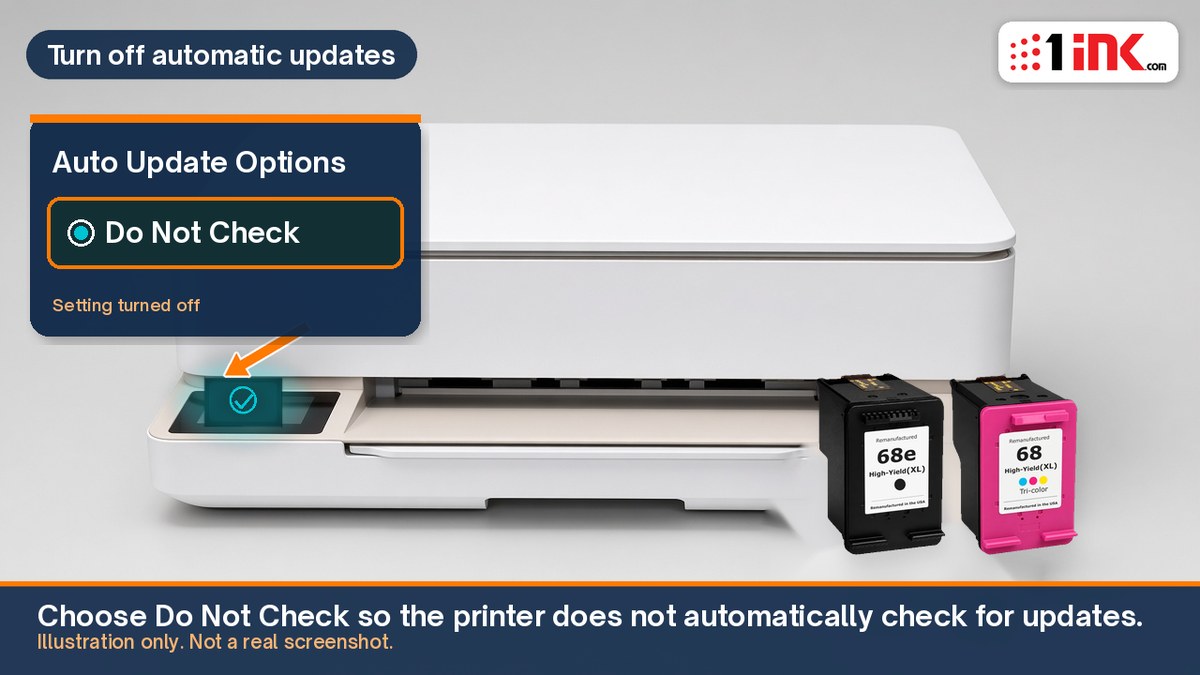
- On an ENVY, go to Menu, then Utilities, then Settings. Open Firmware Update, then Auto Update Options, and choose Do Not Check.
- On a DeskJet 2955 or 4355, open the HP app on Windows or Mac, select the printer image, then Advanced Settings, Tools, Printer Updates, and Firmware Updates. Look for a setting that stops automatic checks. Do not click Check Now or Update unless you mean to install firmware.
- On ENVY models, also turn off Cartridge Protection: Menu, Utilities, Settings, Supplies, then Cartridge Protection.
- On a DeskJet, Cartridge Protection is not documented in the 4355 guide. See the Cartridge Protection section below.
Which printers use these steps?
These steps cover printers that take remanufactured HP 68e black and HP 68 tri-color cartridges, including our 68e black and 68 tri-color 2-pack:
An "e" in the name does not mean HP+ is on. If HP+ is on, HP says the printer must use Original HP ink for its lifetime, and there is no setting that turns HP+ off. Turning off firmware updates will not unlock an HP+ printer. Check whether HP+ is actually on before you treat that as the cause. A hard block can also happen when HP+ is off. Read What is HP+? and do not turn HP+ on.
Why should you turn off automatic firmware updates?
These printers use HP Dynamic Security even when HP+ is off. HP says internet firmware updates "can also block cartridges that previously worked," including ones with modified or non-HP circuitry. Turning off automatic checks is prevention. It does not remove firmware that is already installed, undo a block, or turn off HP+. 1ink testing found that a later rejection at the depleted level can depend on first-time setup, so these choices matter most then. Skip HP+ and Instant Ink during that setup.
Do this after a test page prints. If you are still seeing an install message such as Used or Refilled that you can dismiss, or if printing later stopped, use the companion guide first, then come back to these steps only if printing has resumed.
How do you turn off automatic firmware updates?
Instant Ink or another HP service that requires automatic updates may keep this setting locked. If it is, see the section on grayed-out settings below.
ENVY models: turn off auto updates on the touchscreen
These steps come from HP's ENVY 6100e and 6500e user guide and apply to all six ENVY models listed above.
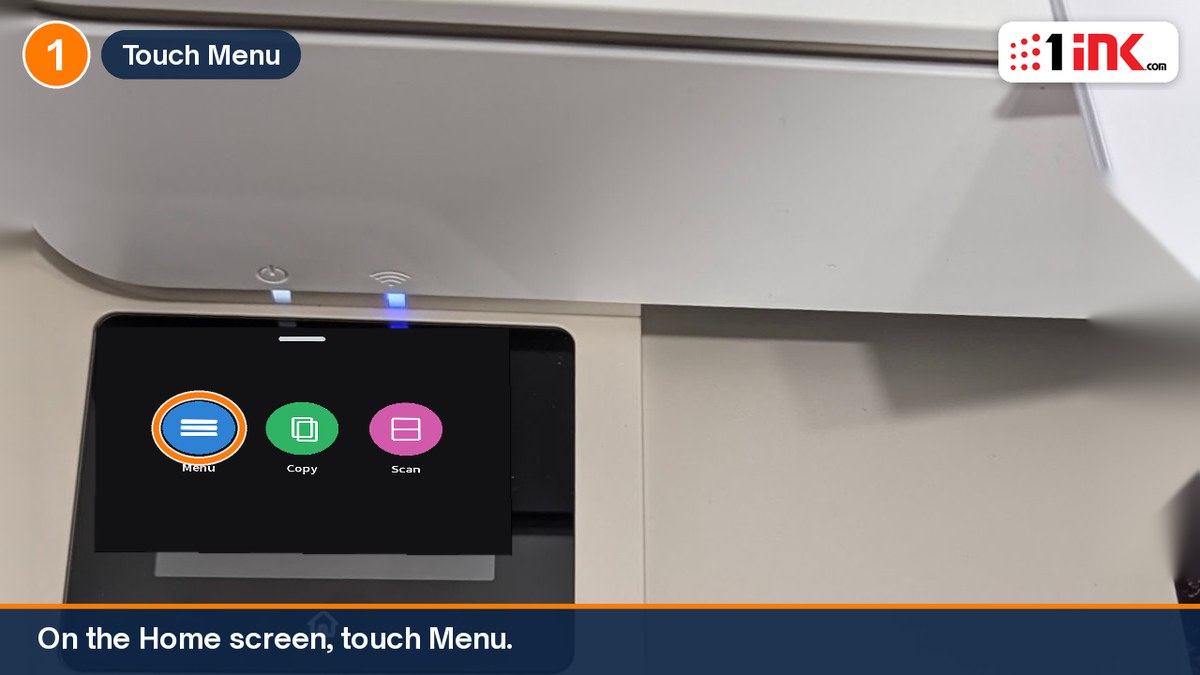
- On the Home screen, touch Menu.
- Scroll to Utilities and touch Settings.
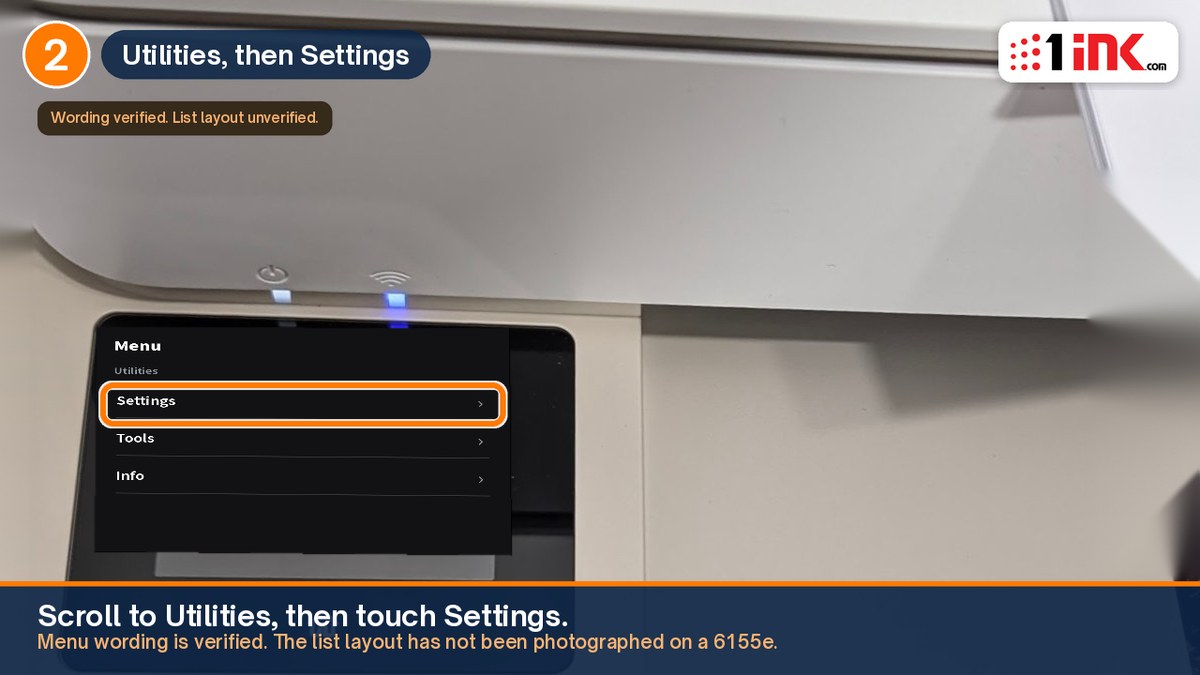
Illustration; your screen's wording may differ.
- Touch Firmware Update, then touch Auto Update Options.
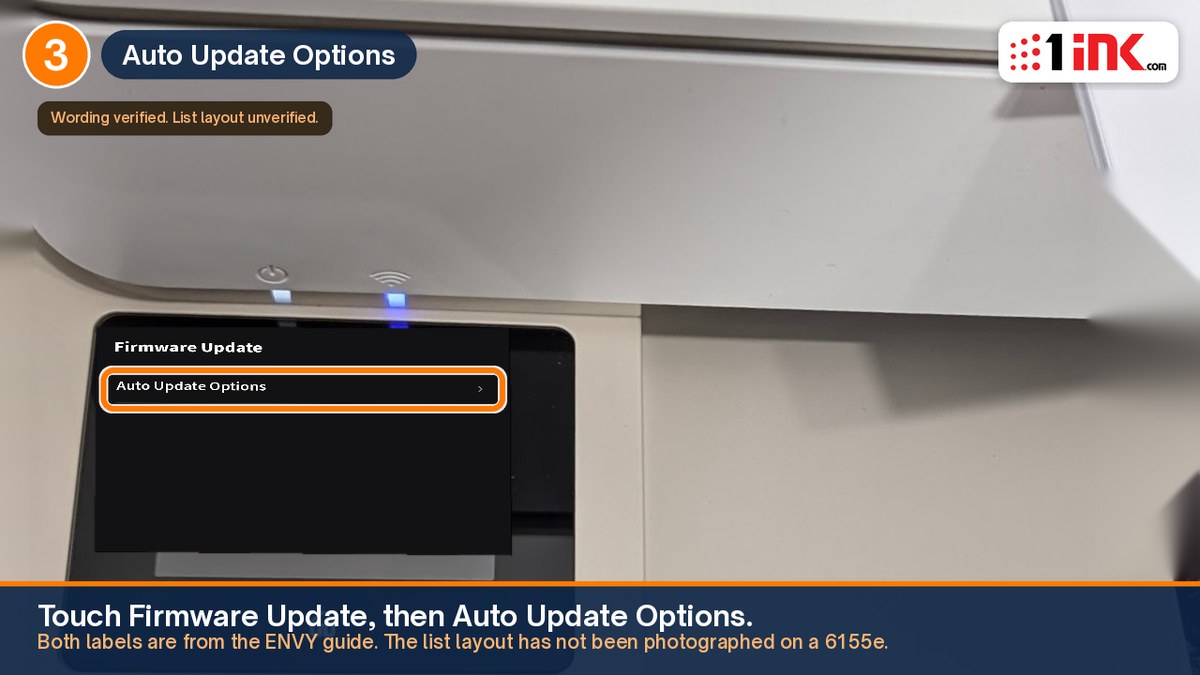
Illustration; your screen's wording may differ.
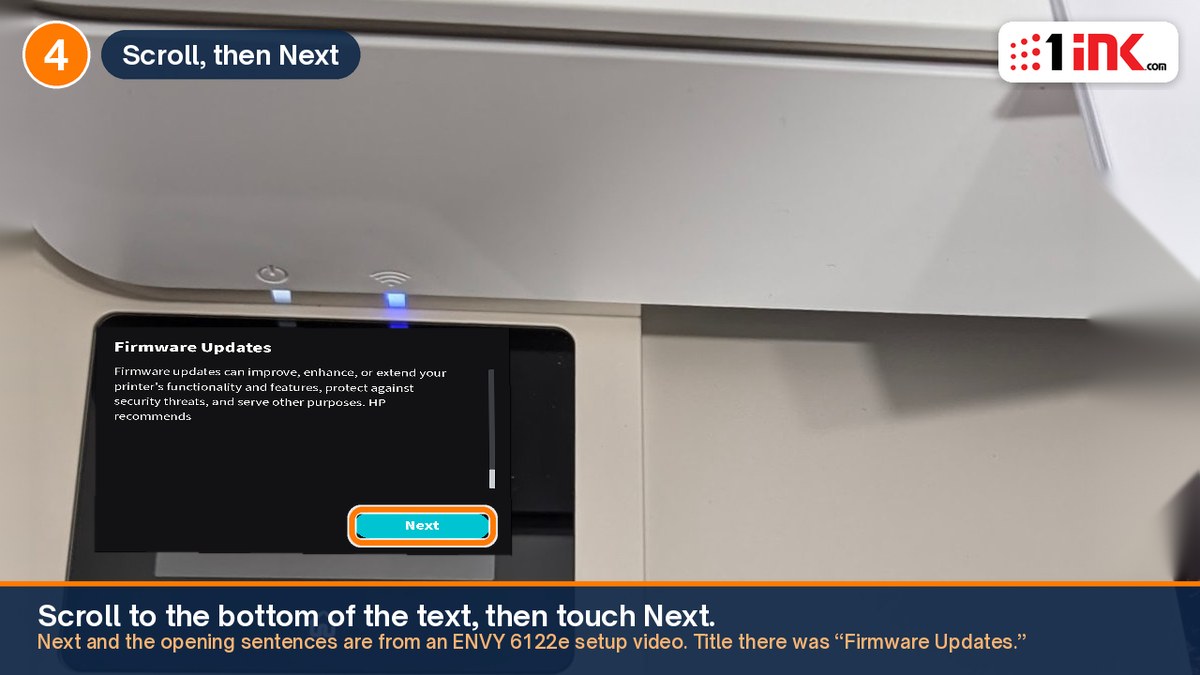
- Scroll to the bottom of the text, then touch Next.
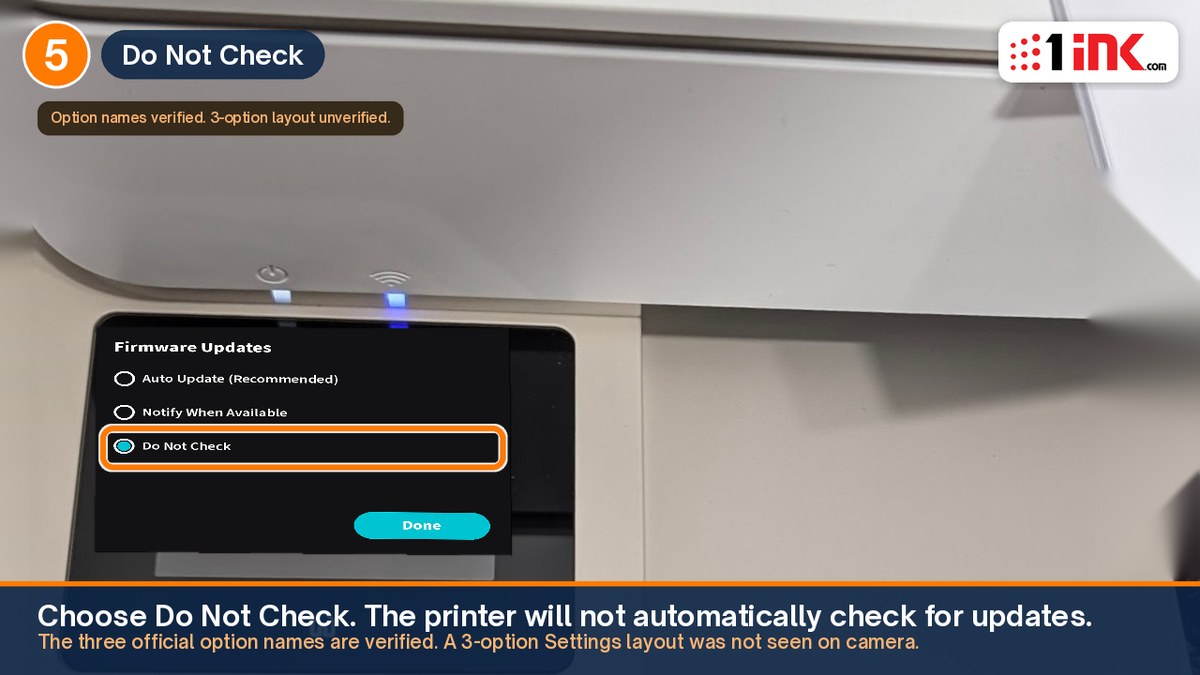
- Touch Do Not Check. HP says the printer will not automatically check for updates. Use Notify When Available if you want a prompt instead. Avoid Auto Update (Recommended).
Illustration; your screen's wording may differ.
DeskJet 2955 and 4355, in the HP app on Windows or Mac
These printers do not have the ENVY menus. HP's DeskJet 4355 user guide gives one HP app path for Windows and macOS. It opens the printer's web page, called the Embedded Web Server, or EWS. You can also type the printer's IP address into a browser after you press the Information button. The HP app looks the same on Windows and Mac, so each step shows one screen.
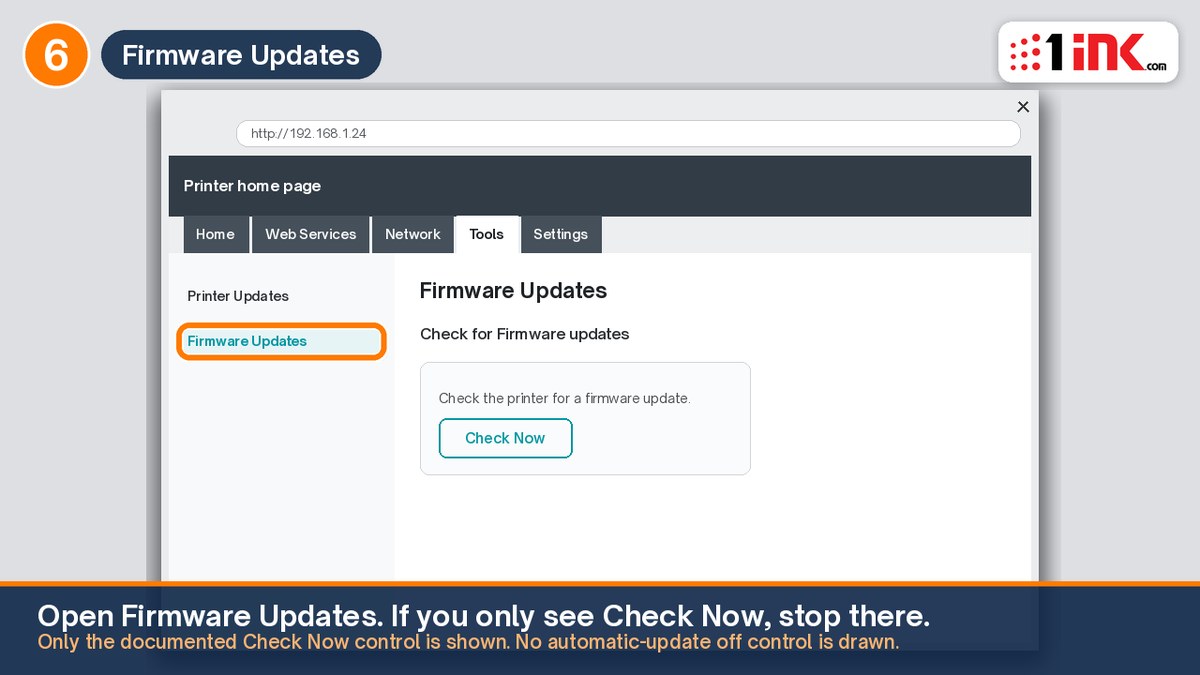
The guide shows how to open Firmware Updates, but it does not name a Do Not Check button. We could not confirm the exact labels on a 2955 or 4355. Look for a choice that stops automatic checks. If the setting is locked, see the section on grayed-out settings below.
- Open the HP app on your Windows PC or Mac. If prompted, create or sign in to an HP account.
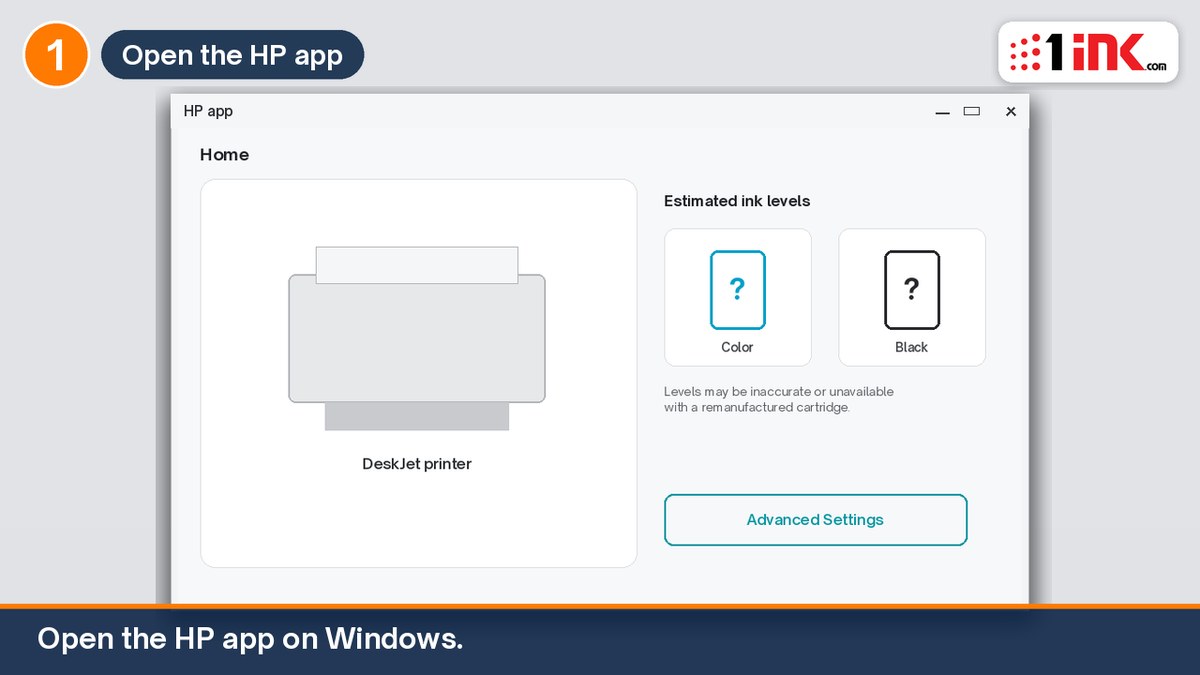
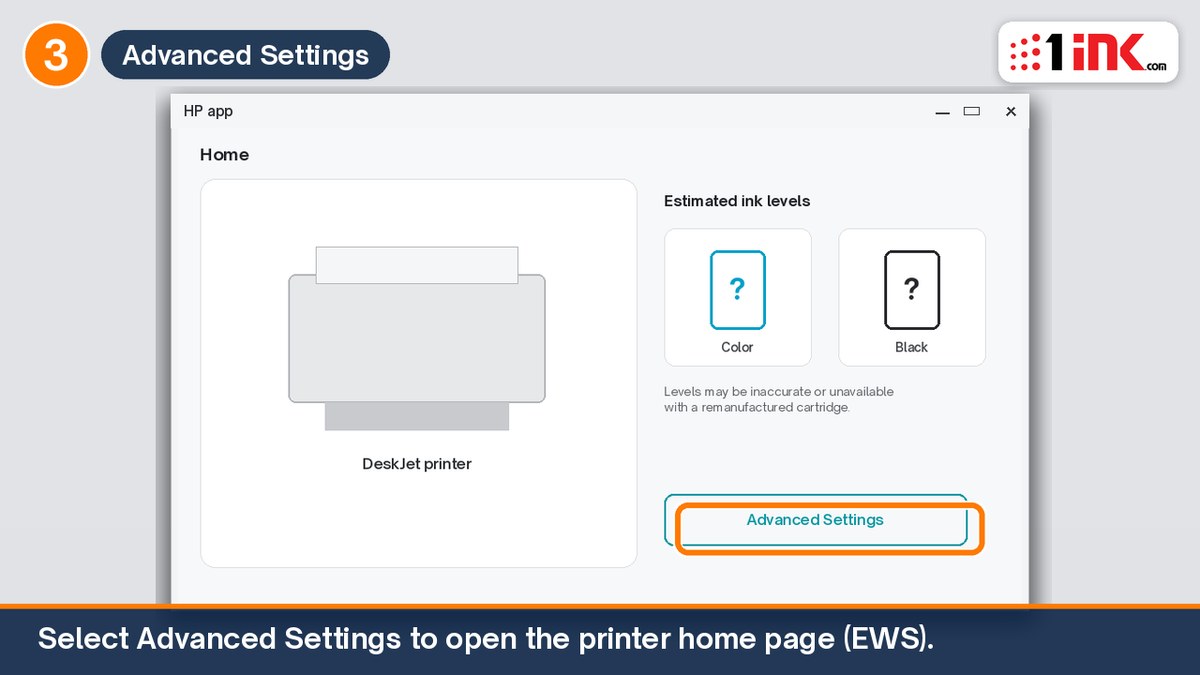
- Click or tap your printer image.
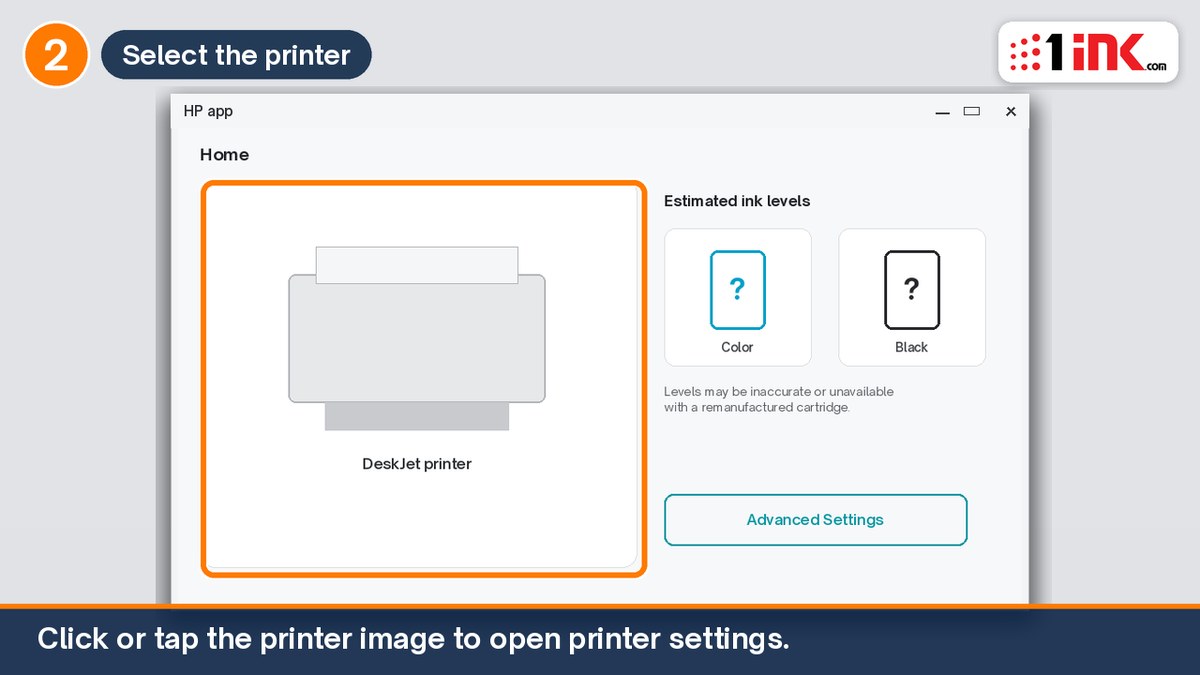
- Select Advanced Settings to open the EWS. If asked for a password, enter the PIN from the label inside the cartridge access door.
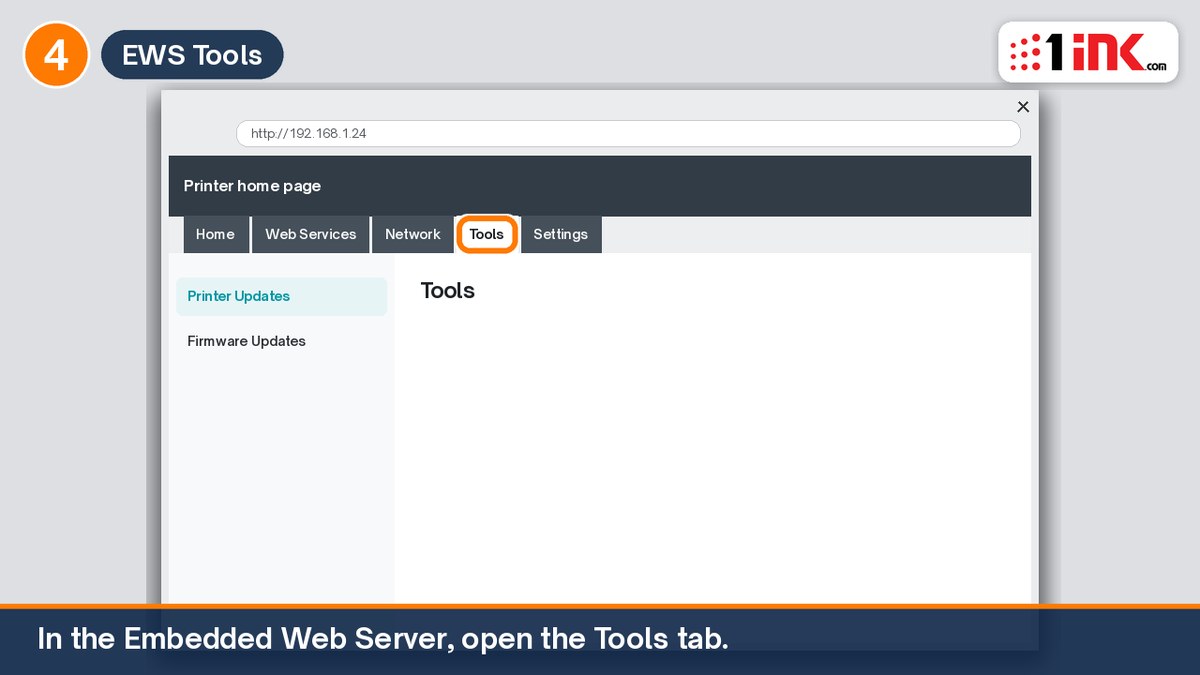
- Click or tap Tools.
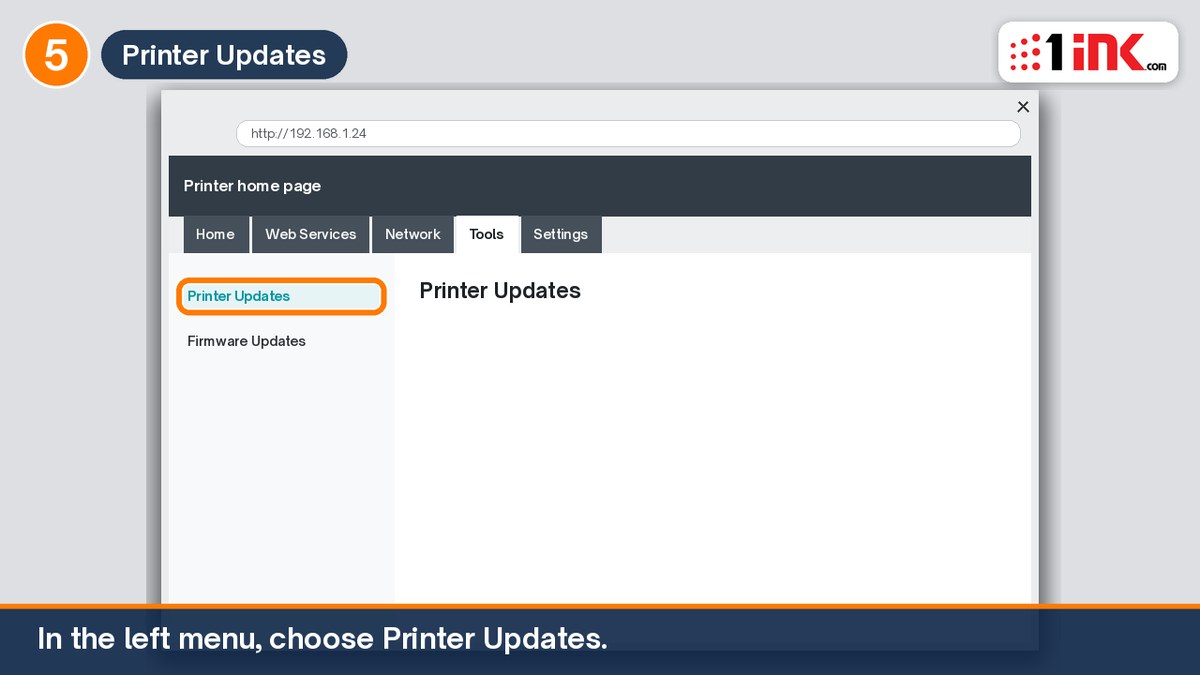
- Click or tap Printer Updates.
- Select Firmware Updates. Look for a setting that stops automatic checks. Leave Check Now alone unless you mean to install an update.
How do you turn off Cartridge Protection?
This setting is separate from Dynamic Security and from HP+. On ENVY models, HP's user guide says turning it on "will permanently protect the cartridges." Turn it off so a cartridge is not locked to that printer. A cartridge already locked on another printer stays locked.
ENVY models: turn off Cartridge Protection on the touchscreen
- On the Home screen, touch Menu, then Utilities, then Settings.
- Touch Supplies.
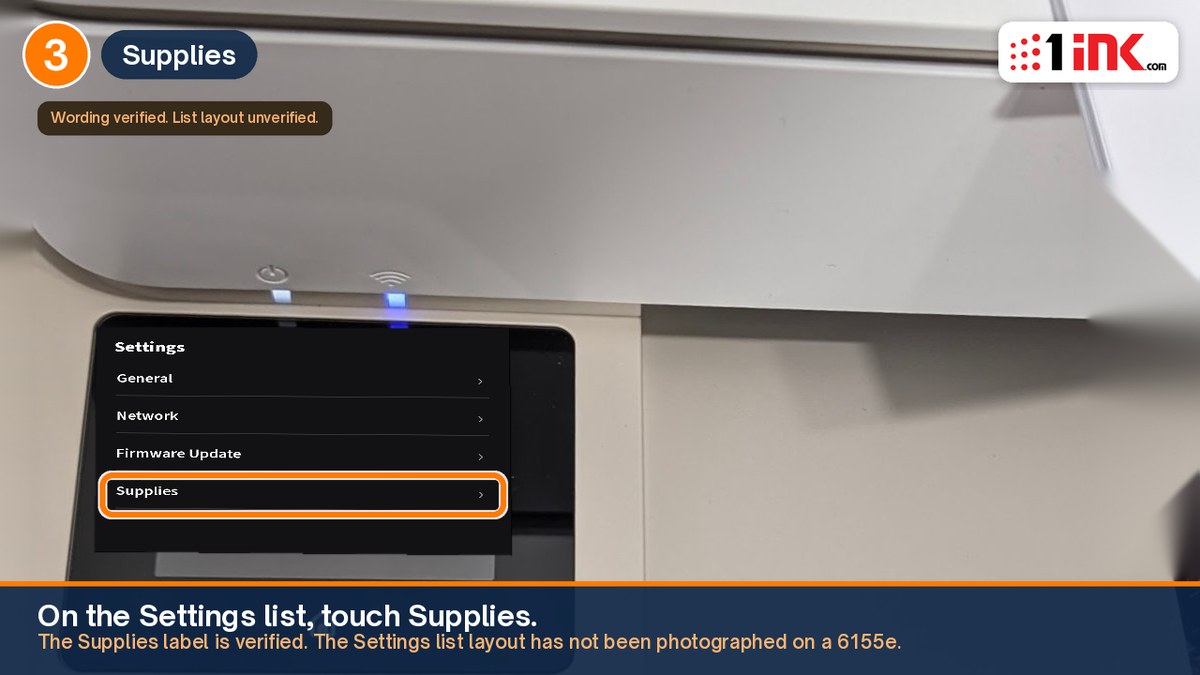
Illustration; your screen's wording may differ.
- Touch Cartridge Protection, then use the toggle so protection is off.
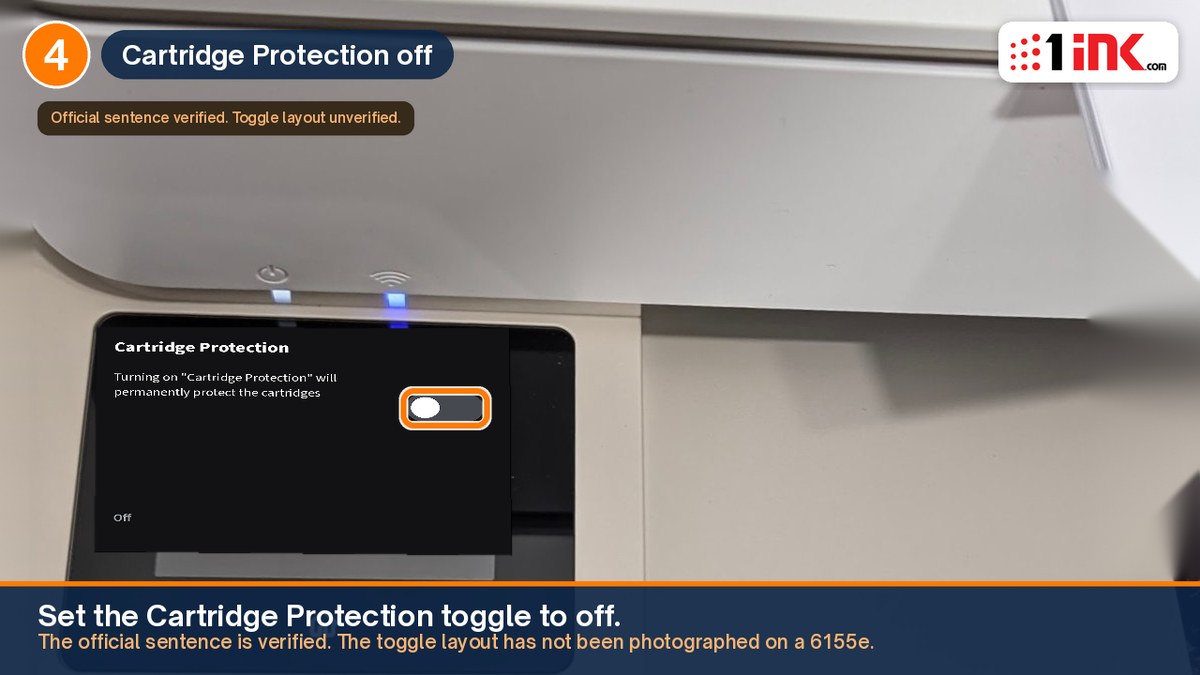
Illustration; your screen's wording may differ.
DeskJet 2955 and 4355
HP's official DeskJet 4355 user guide does not mention Cartridge Protection or give a path to turn it off. We cannot give verified DeskJet steps. If you see the setting after you open Advanced Settings, turn it off, but we have not confirmed that a 2955 or 4355 includes it. If the printer says a cartridge is protected, contact 1ink and we'll help you sort it out.
What if the firmware setting is grayed out?
Instant Ink or another HP service that requires automatic updates may keep this setting locked. HP's general firmware article mentions Firmware Update Settings and says to remove Web Services first if those settings are grayed out. We have not confirmed the exact labels, or this workaround, on a DeskJet 2955 or 4355.
Leaving automatic updates on can allow a later firmware change to block a remanufactured cartridge that is printing today. If the control stays locked, contact 1ink and tell us what you see on the screen.
What does not work?
Do not click Check Now or Update unless you mean to install firmware. Do not update firmware to "fix" a "Used or Counterfeit" message, and do not try to install older firmware. A new update can block a cartridge that is printing today, and we have not found an HP rollback tool for these home printers. A factory reset will not undo HP+ or a firmware block. Never turn on HP+.
Frequently asked questions
Can I turn off automatic updates and Cartridge Protection on a DeskJet?
Use the HP app path above to reach Firmware Updates on Windows or Mac. HP does not clearly document a Do Not Check control, or Cartridge Protection, for the 2955 or 4355. The Cartridge Protection steps are for ENVY models only.
Will this fix a cartridge that a firmware update already blocked?
No. Turning off automatic updates does not roll firmware back, and it does not undo HP+. If printing later stopped after the cartridge reached a depleted level, see the Used or Counterfeit Cartridge guide first. If a cartridge still won't work, contact 1ink and we'll help you sort it out. Start at our contact page.
Does an "e" in the printer name mean I cannot use a remanufactured cartridge?
No. An "e" does not mean HP+ is on. See the printer section above. If HP+ is on, a remanufactured cartridge will not work, and these firmware settings will not change that.