

Published by 1ink.com team on November 19, 2026. 12-min read
Quick answer: The install message on a printer that uses HP 68 or 68e ink is often a warning, not a hard stop, and it does not mean your 1ink cartridge is fake. 1ink remanufactures used genuine HP cartridges that still have the original HP chip. On a customer's printer, with HP+ off, the screens were titled HP Cartridges and Used or Refilled. The printer called the cartridges Original HP and said they had been refilled or remanufactured. Press OK to continue. In 1ink testing, printing then worked until the cartridge reached a depleted level, and whether the printer rejected it after that depended on first-time setup. If printing has already stopped, do not keep pressing buttons or reinstalling the cartridge. Contact 1ink.
Quick steps:
- Read the exact message on the printer and in the HP app (also called HP Smart).
- If you see HP Cartridges or Used or Refilled, or you can choose No, OK, or Continue, or press Resume on a DeskJet 2955 or 4355, follow the clear-the-message steps below and print a test page.
- At first setup, skip HP+ and Instant Ink. After a test page prints, turn off automatic firmware updates. Those steps are in the setup section below and in our firmware update guide.
- If printing later stops and you cannot continue, do not try to click past the message. Check whether HP+ is on. Do not reinstall the cartridge or install a firmware update to "fix" it. Contact 1ink.
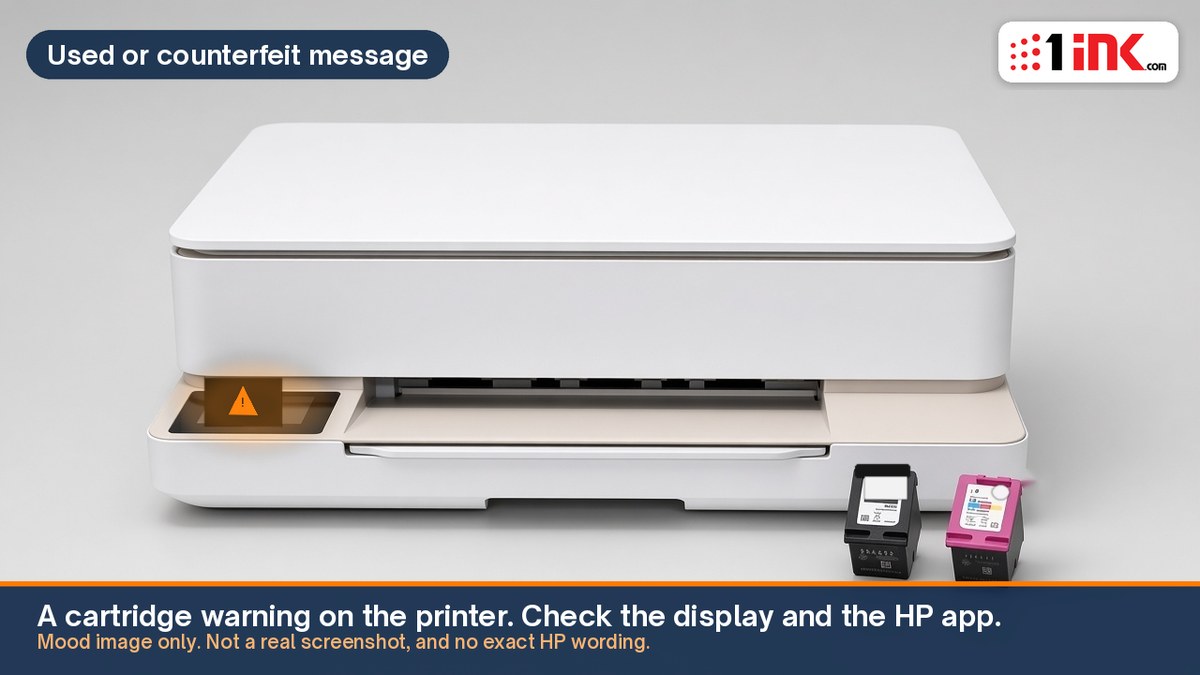
What does the message actually say?
We have the exact wording from an HP 68e touchscreen at install. A 1ink customer was using remanufactured genuine HP 68e cartridges with the original HP chip, and HP+ was not turned on. The printer first showed an information message titled HP Cartridges, with a circled K for the black cartridge:
"The indicated cartridges are Original HP cartridges that were previously installed."
The only button was OK.
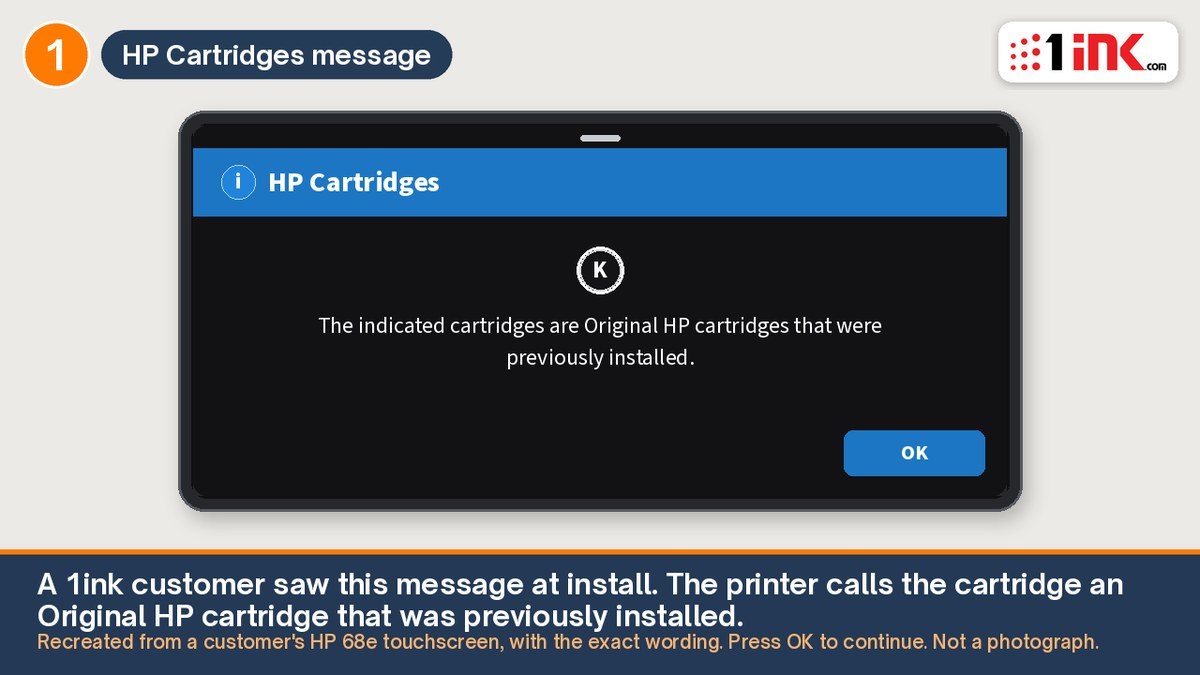
Recreated from a customer's HP 68e touchscreen, with the exact wording. Not a photograph.
A second message then appeared, titled Used or Refilled, again with a circled K:
"The printer has identified the indicated cartridges as having been refilled or remanufactured."
The buttons were Cancel and OK. Pressing OK continues, and the cartridge can keep printing. The printer does not call them counterfeit on these two screens.
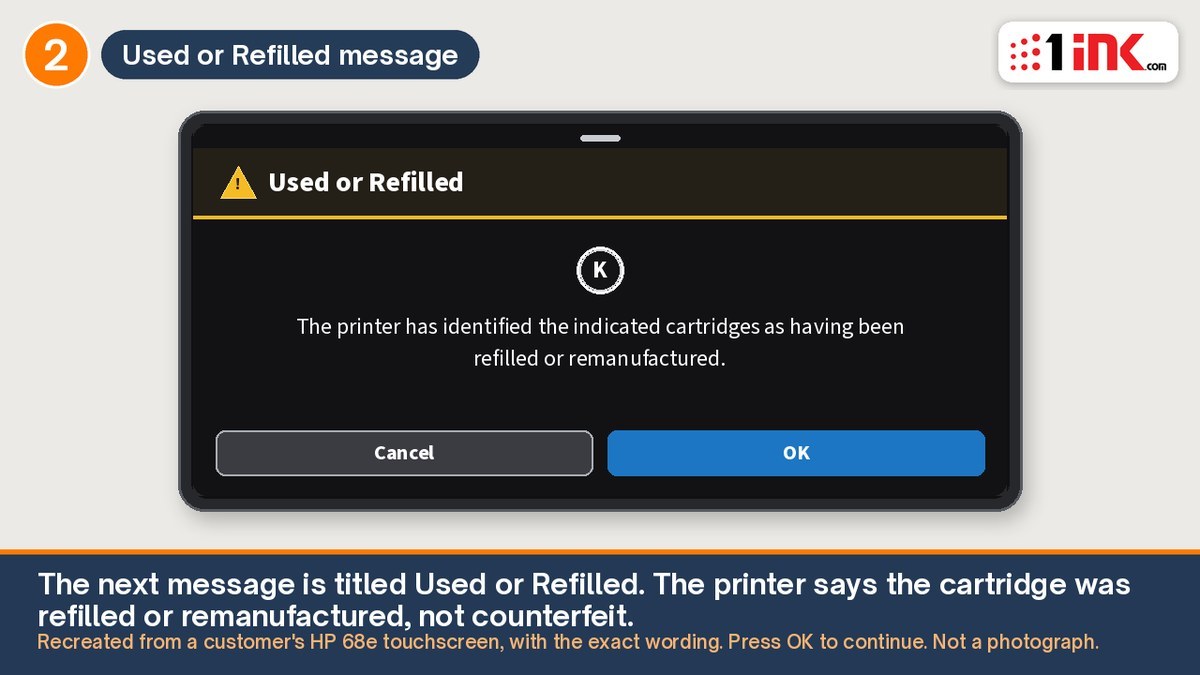
Recreated from a customer's HP 68e touchscreen, with the exact wording. Not a photograph.
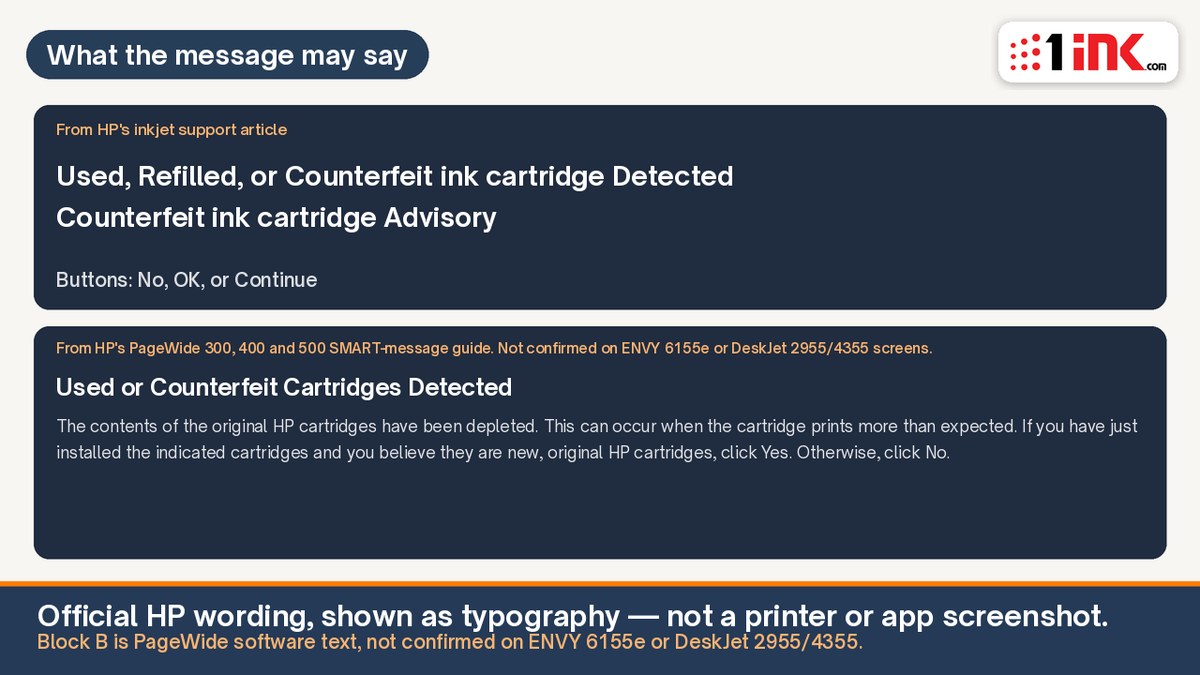
HP's support article for this alert still lists the titles "Used, Refilled, or Counterfeit ink cartridge Detected" and "Counterfeit ink cartridge Advisory," "or similar," and says to select No, OK, or Continue. If a page then prints, HP says the issue is resolved, though the message may come back. On a DeskJet 2955 or 4355, the printer may only show warning lights; HP's 4355 guide says to press Resume and refer to the message in HP software. If you see a Yes or No question about whether the cartridge is new, choose No. A remanufactured 1ink cartridge was not sold as new and unused.
Is a remanufactured HP 68 cartridge counterfeit?
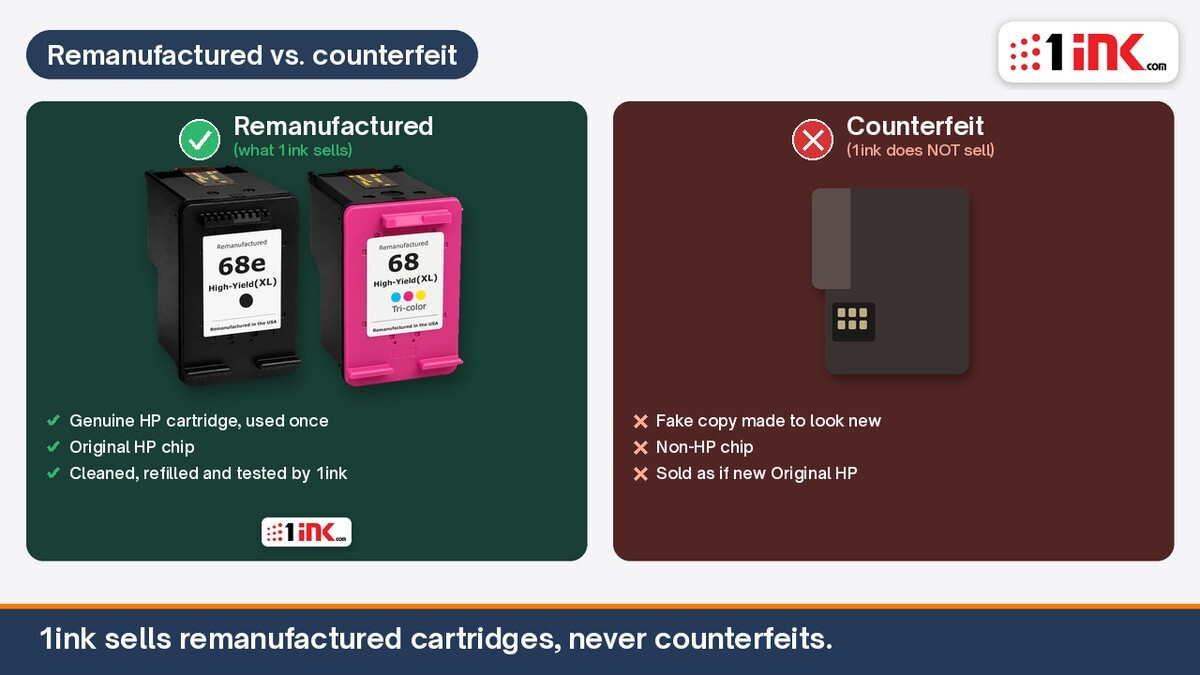
No. 1ink sells remanufactured cartridges, not counterfeits. A remanufactured HP 68 cartridge is a genuine HP cartridge that was used once. It still has the original HP chip. 1ink cleans, refills, and tests it.
HP's support article still groups "used," "refilled," and "counterfeit" in the same alert. That can make a remanufactured cartridge look like a fake one. On the install screens above, the printer said the cartridges had been refilled or remanufactured. It did not call them counterfeit.
Which printers use HP 68 and 68e cartridges?
These steps cover printers that take remanufactured HP 68e black and HP 68 tri-color cartridges, including our 68e black and 68 tri-color 2-pack:
An "e" in the name does not mean HP+ is on. If HP+ is on, HP says the printer must use Original HP ink for its lifetime, and HP+ cannot be turned off. A similar-sounding block can also happen when HP+ is off, so check before you treat HP+ as the cause. Read What is HP+? and do not turn HP+ on.
Why does the printer show this message?
These printers use HP Dynamic Security even when HP+ is off. HP says the printer authenticates the cartridge chip, and that firmware updates can later block cartridges that worked before, including ones with modified or non-HP circuitry. The used or refilled alert can also appear when a genuine HP cartridge is low or empty.
How do you clear the message, step by step?
Use the ENVY steps for a color touchscreen. Use the DeskJet steps if your printer has a Resume button and a small display. Button labels can vary, so use the control that lets you continue.
ENVY 6152e, 6155e, 6165e, 6552e, 6555e and 6558e
- Check the touchscreen and the HP app for the prompt.
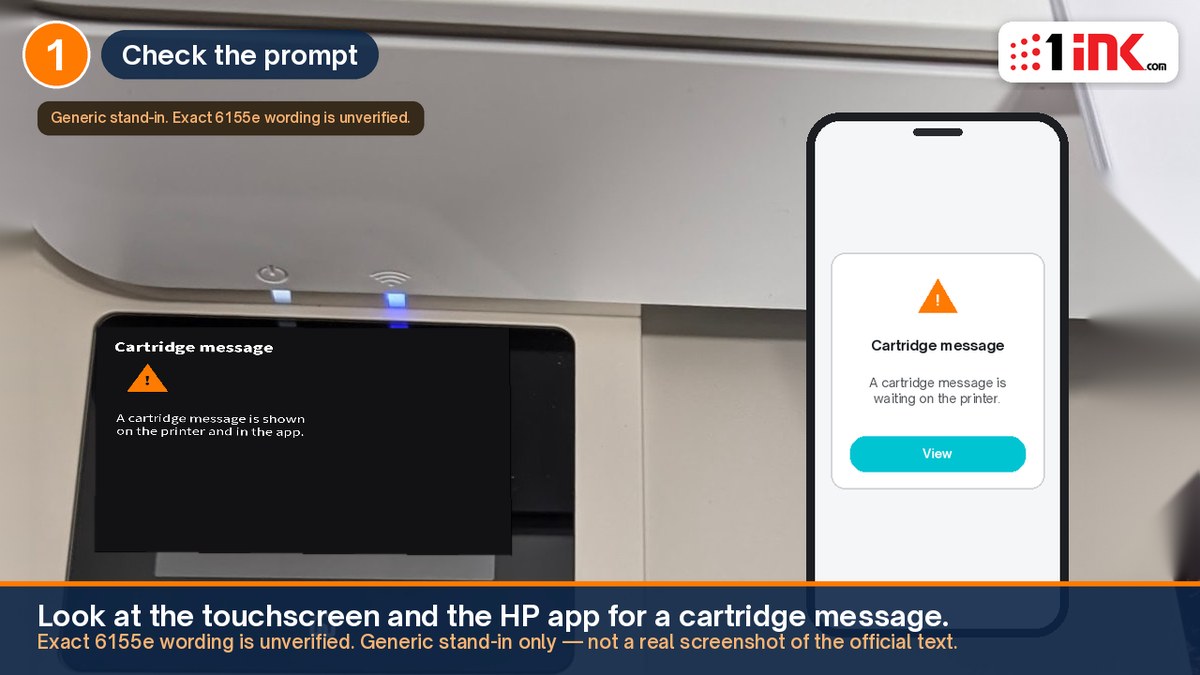
Illustration; your screen's wording may differ.
- If asked whether the cartridge is new, choose No. In HP's documented software wording, that question asks if you believe the cartridges are new, original HP cartridges. A remanufactured 1ink cartridge is not. Choosing Yes can lead to more prompts.
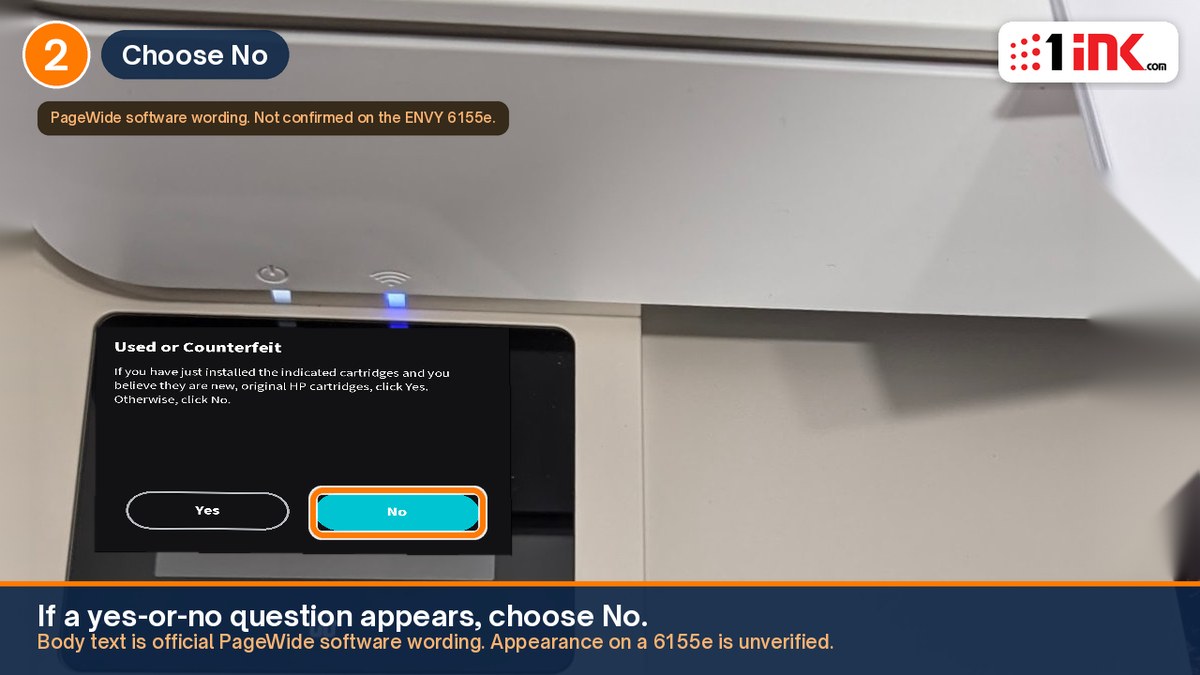
Illustration; your screen's wording may differ.
- Choose OK, Continue, or Resume on follow-up screens. On the HP 68e install screens we have seen, that button is OK.
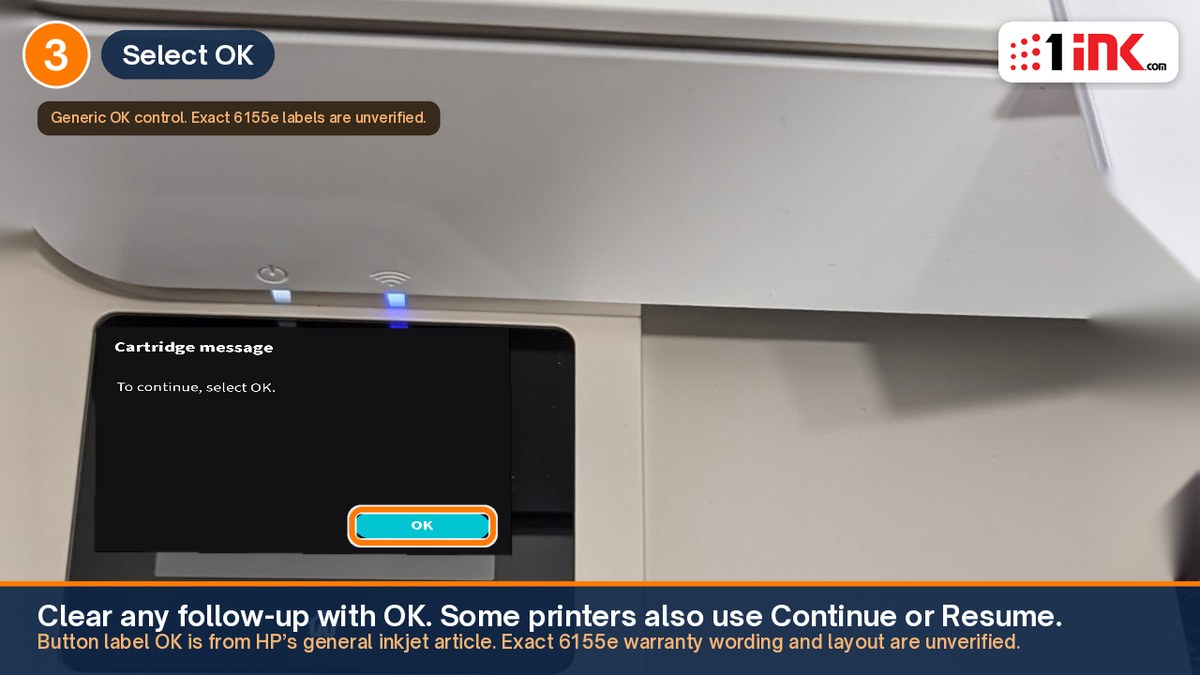
Illustration; your screen's wording may differ.
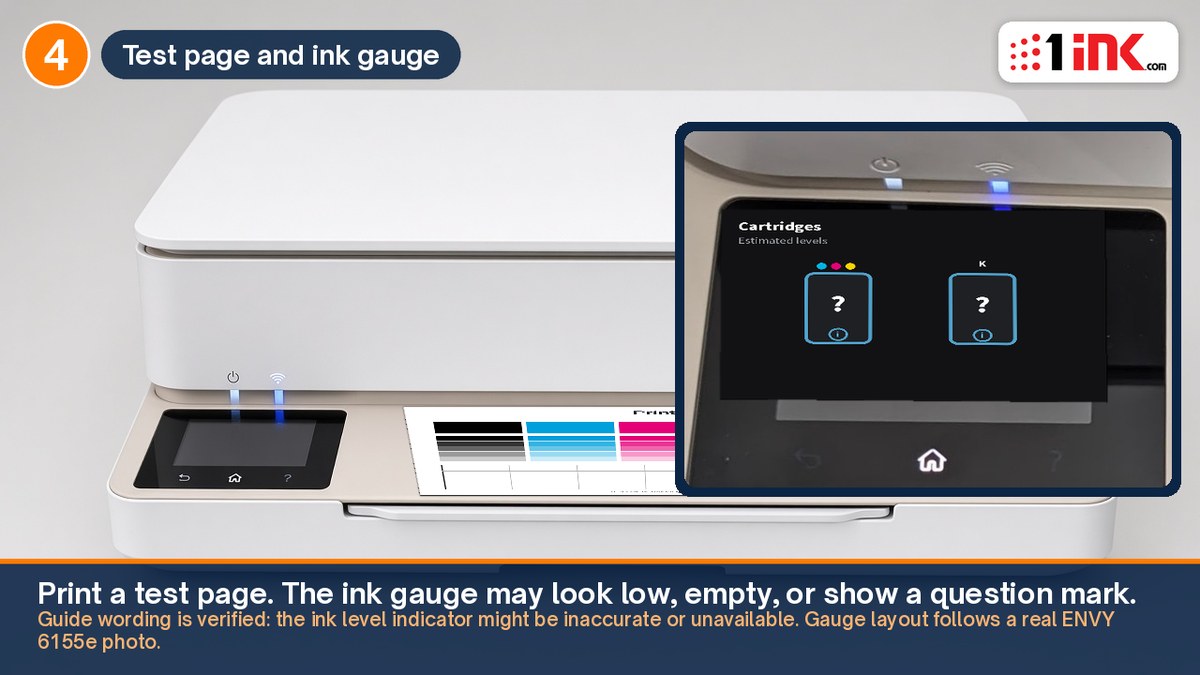
- Print a test page. A low, empty, or "?" gauge can be normal. HP's ENVY guide says the indicator "might be inaccurate or unavailable" with a remanufactured cartridge. Judge by the printed page.
DeskJet 2955 and 4355
- Check the lights and the HP app. HP says this can show a blinking Error icon, ink icons, and a Resume light, and to refer to the message in HP software. The HP app looks the same on Windows and Mac, so each step shows one screen.
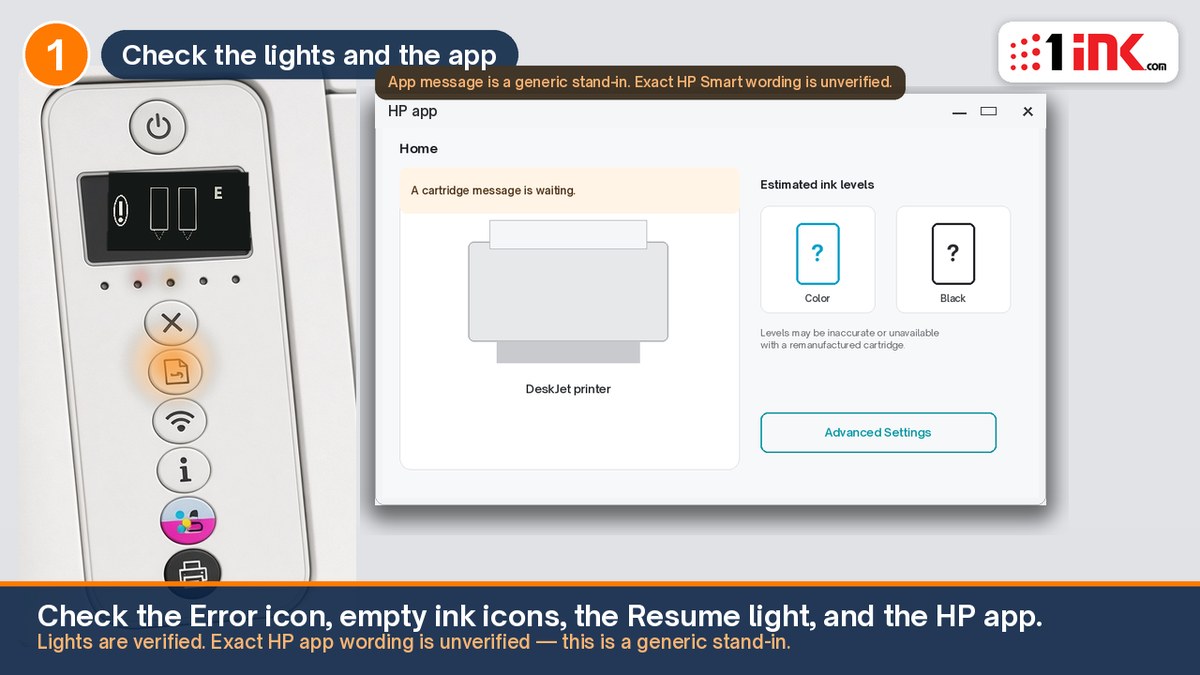
Illustration; your screen's wording may differ.
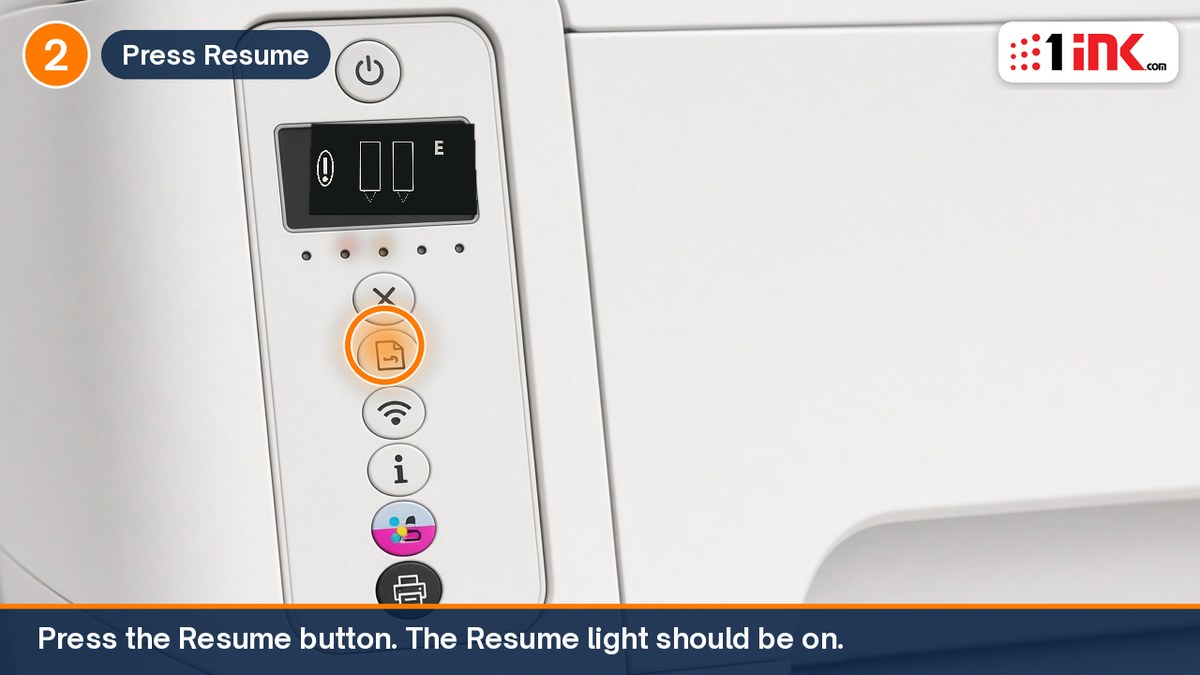
- Press Resume. HP's DeskJet 2900 and 4300 support page and the 4355 user guide say to press Resume when the cartridges may be previously used or very low.
- If the HP app asks whether the cartridge was sold as new or unused, choose No. HP has not published the exact app wording.
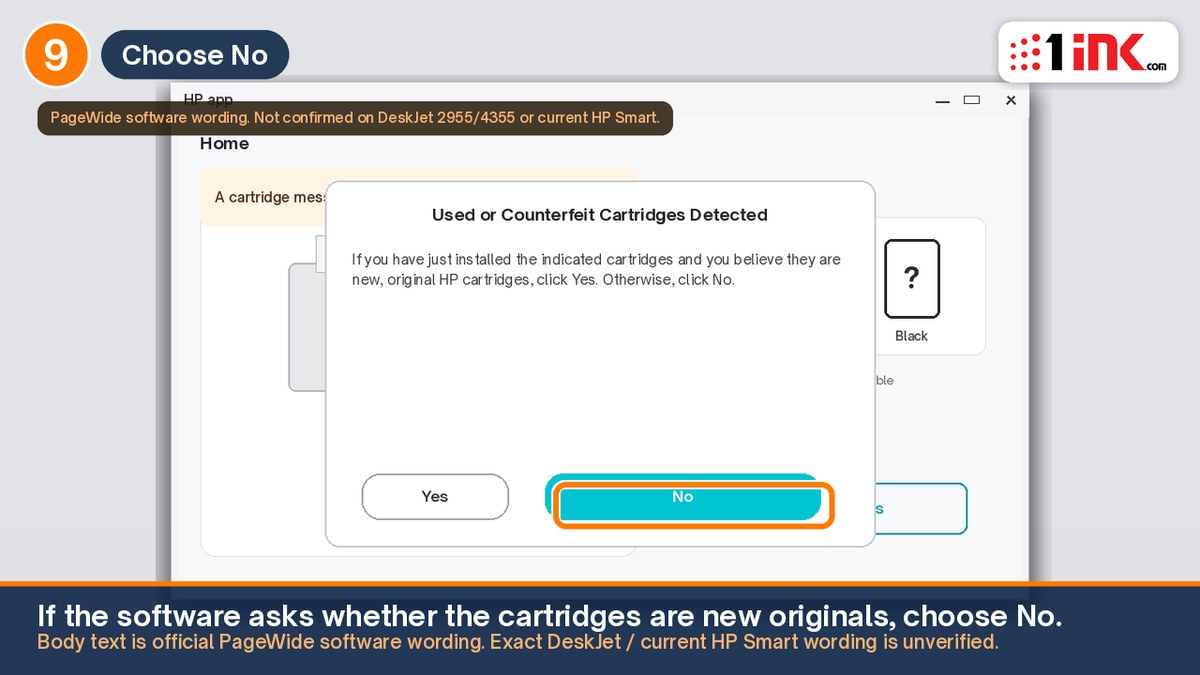
Illustration; your screen's wording may differ.
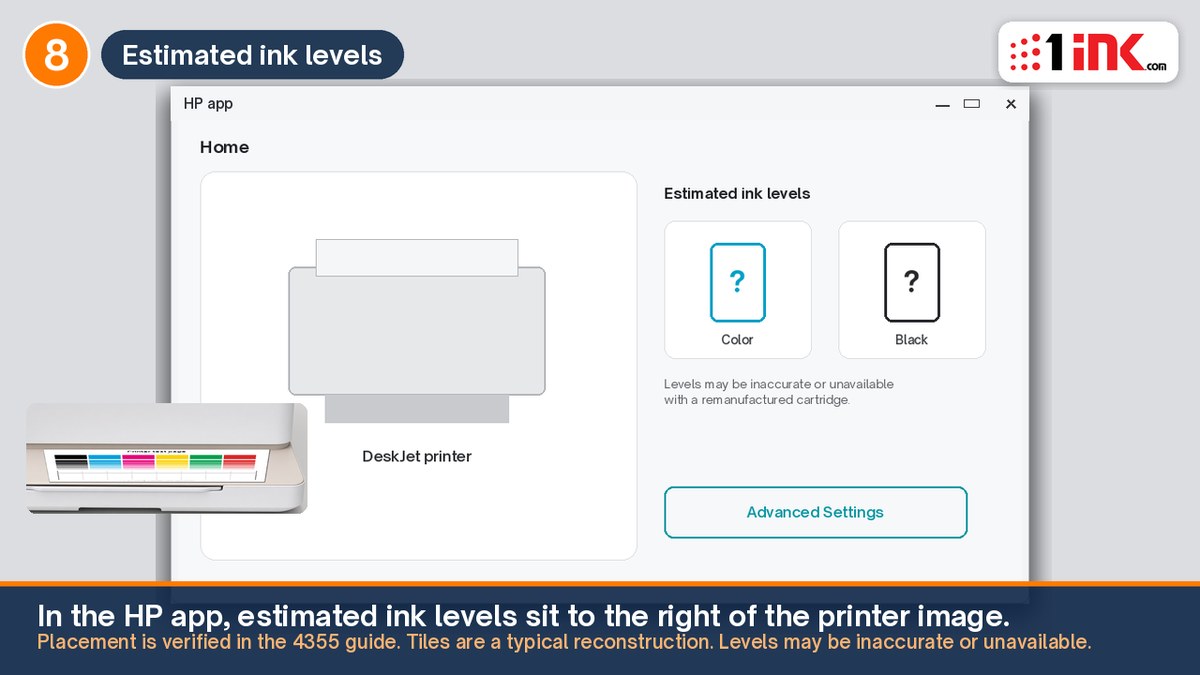
- Print a test page. HP's 4355 guide says the ink level indicators "might not be accurate or available" with a remanufactured cartridge. In the HP app, levels appear to the right of the printer image. Judge by print quality.
What if the printer prints a few pages, then blocks the cartridge?
That is different from the install messages you can click past. After you press OK on HP Cartridges or Used or Refilled, the cartridge can keep printing. 1ink reproduced a later issue in testing: the cartridge printed until it reached a depleted level, then the printer rejected it. That later rejection can depend on first-time setup, especially HP+, Instant Ink, and firmware options. The next section explains those choices.
HP documents both parts of that sequence. Its article on this alert says the used or counterfeit message can also appear when genuine HP cartridges are depleted or almost depleted. A separate article, "Depleted Cartridges must be replaced to resume printing," is a hard stop: you must replace the indicated cartridge to resume printing.
A 1ink customer saw the same pattern with three remanufactured genuine HP 68e shells that still had the original HP chip, not a third-party chip, on a printer that did not have HP+ turned on (checked by serial number). All three accepted, printed a few pages, then stopped. He thinks the later buttons were Hide and OK, then a message saying, in effect, that he must use or buy original HP cartridges. We have not confirmed that later wording, or those button labels, and we do not have a photo of that screen.
If printing has already stopped, confirm whether HP+ is on; that condition cannot be turned off. Do not keep pressing buttons, reinstall the same cartridge, or install a firmware update to "fix" it. There is no HP firmware rollback for these home printers. If a cartridge still won't work, contact 1ink and we'll help you sort it out. Start at our contact page.
How first-time setup can affect printing later
A few choices at first setup can affect whether a remanufactured cartridge keeps printing later. The most likely explanation, though we cannot state it as certain, is that the reused original chip still remembers the ink level from its first life. After you press OK on the install warning, the cartridge typically prints until the chip reports depleted. Then HP's "Depleted Cartridges must be replaced to resume printing" message applies. HP's user guide also says, "Refilling cartridges prior to depletion might cause your printer to fail."
HP+ is offered during first setup and can be skipped. If you accept it, it is permanent. HP's HP+ FAQ says, "Once activated, HP+ is embedded in the device and will require the use of Original HP Ink for the lifetime of the printer." A factory reset does not remove it. HP's user guide says HP+ printers "do not print when disconnected or when non-Original HP or refilled cartridges are installed."
Instant Ink enrollment lets HP push firmware updates remotely "without notice," and those updates cannot be turned off while you are enrolled. Canceling Instant Ink does not roll back firmware that is already installed.
During online setup, the printer checks for firmware updates automatically by default. You can change this under Menu > Utilities > Settings > Firmware Update > Auto Update Options to Notify When Available or Do Not Check, unless Instant Ink is active. The full steps are in our firmware update guide.
At first setup, skip HP+ and Instant Ink, and turn off automatic updates.
What if the printer still will not print?
- Power reset. Turn the printer off, unplug it, wait 60 seconds, and plug it straight into a wall outlet, not a power strip. That wait comes from HP's support page for this message.
- Reseat the cartridge. Open the door, wait for the carriage to stop, then remove the cartridge and push it in until it clicks.
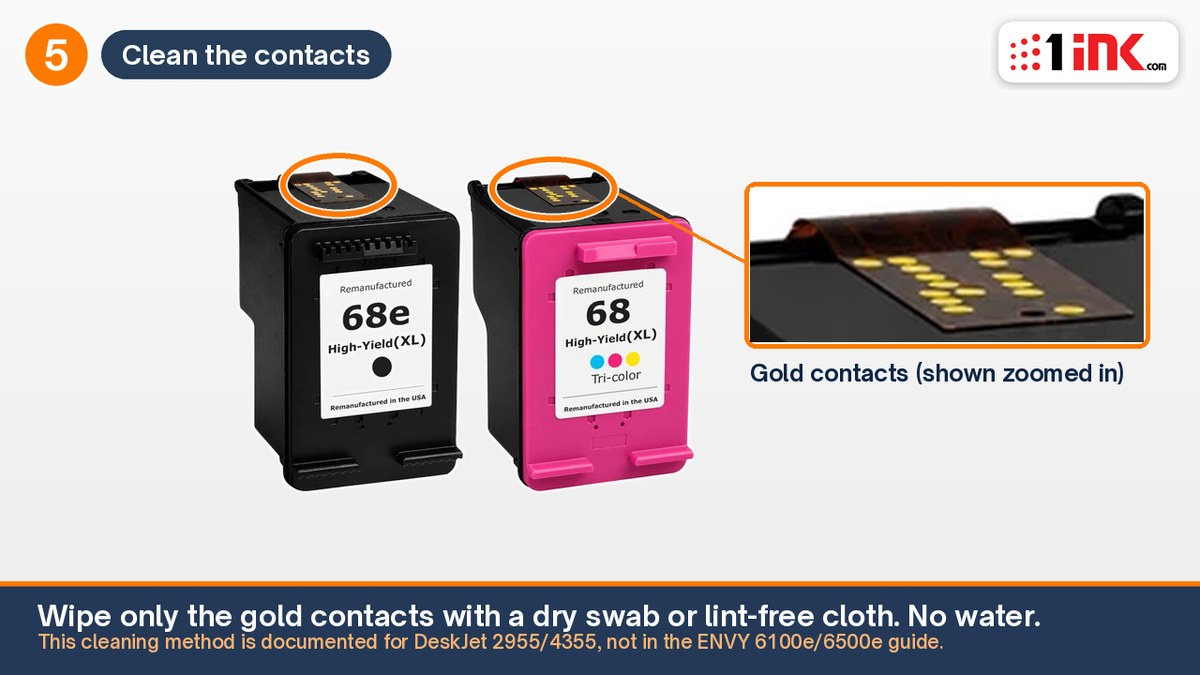
- Clean the contacts. On a DeskJet 2955 or 4355, HP says to wipe only the small gold-colored dots with a dry swab or lint-free cloth. Do not touch the nozzles or leave the cartridge out for long. HP's ENVY guide does not document this procedure.
- Use one cartridge as a stopgap. Remove the problem cartridge and choose OK if you see a single-cartridge mode message. HP says the HP 68 family can print this way until you install another cartridge.
If a cartridge still won't work, contact 1ink and we'll help you sort it out. Start at our contact page.
What do the other cartridge messages mean?
Depleted cartridges must be replaced is a hard stop. HP says you must replace the indicated cartridge to resume printing. That is the later stop described above.
Protected cartridge, or an Instant Ink message: Instant Ink cartridges are tied to that service. Contact 1ink and we'll help you sort it out.
Original HP cartridges required is the wording HP's support pages use when HP+ is on. There is no setting that turns HP+ off, and a remanufactured cartridge will not work on an HP+ printer. See What is HP+? and our guide to printer brands that block compatible cartridges. If HP+ is not on, a similar-sounding original-HP message can still appear as a hard block; treat that as the situation described above, not as proof that HP+ was activated.
What does not work?
Do not update firmware to "fix" a cartridge message, and do not try to install older firmware. A new update can block a cartridge that is printing today, and we have not found an HP rollback tool for these home printers. Skip a factory reset; it will not undo HP+ or a firmware block. If asked whether the cartridge was sold as new or unused, do not choose Yes. If the printer has already stopped printing, do not keep pressing on-screen buttons or reinstalling the same cartridge. Never turn on HP+.
Should you turn off automatic firmware updates?
Yes, once a test page prints, and at first install if you can. That is prevention; it cannot undo a block or HP+. The steps are in How to Turn Off Auto Updates on HP Printers That Use HP 68 Ink Cartridges. That guide also covers Cartridge Protection on some ENVY models.
What does HP say about remanufactured cartridges?
This section does not claim anything about HP's intent.
On its Dynamic Security page, HP writes that equipped printers "are intended to work only with cartridges that have new or reused HP chips or electronic circuitry," and that "Original HP cartridges that retain the original HP chip or electronic circuitry enable the refilling, reuse, or remanufacturing of the cartridge and are unaffected by dynamic security." The same page says firmware updates "can also block cartridges using a non-HP chip or modified or non-HP circuitry from working in the printer, including cartridges that work today." The ENVY 6155e product page says periodic firmware updates "will maintain the effectiveness of these measures and block cartridges that previously worked."
HP+ is a separate rule. The ENVY 6155e product page says HP+ "requires an HP account, ongoing connection to the internet, and exclusive use of Original HP Ink cartridges for the life of the printer." The permanent HP+ wording is in the setup section above.
In In re HP Printer Firmware Update Litigation, in the Northern District of California, a 2019 settlement over a 2016 firmware change on certain OfficeJet printers created a $1.5 million fund and barred HP from reactivating Dynamic Security on those class printers. HP denied wrongdoing. In Mobile Emergency Housing Corp. v. HP Inc., about Dynamic Security on certain LaserJet Pro printers, the same court approved a settlement on March 18, 2025. That settlement paid no money to class members. HP agreed to keep making disclosures and to let users of those class printers decline Dynamic Security firmware updates, and again denied wrongdoing. A later antitrust case, Robinson v. HP Inc., was filed in January 2024 in the Northern District of Illinois. A filing is not a finding.
Frequently asked questions
Will a remanufactured HP 68 cartridge work if HP+ is off?
Often, yes. You may still see the HP Cartridges or Used or Refilled warning. If you press OK and a test page prints, you can usually keep going. HP+ being off does not always prevent a later rejection at the depleted level.
Why does the ink level look wrong?
HP says the indicator might be inaccurate or unavailable with a remanufactured cartridge. Watch the print quality.
The printer printed a few pages, then blocked the cartridge. What should I do?
Treat that as the later block described above. If a cartridge still won't work, contact 1ink and we'll help you sort it out.
A firmware update already blocked my cartridge. What should I do?
You cannot roll the firmware back. Turning off automatic updates will not undo a block that has already happened. If a cartridge still won't work, contact 1ink and we'll help you sort it out. The steps are in our firmware update guide.